Security Audit
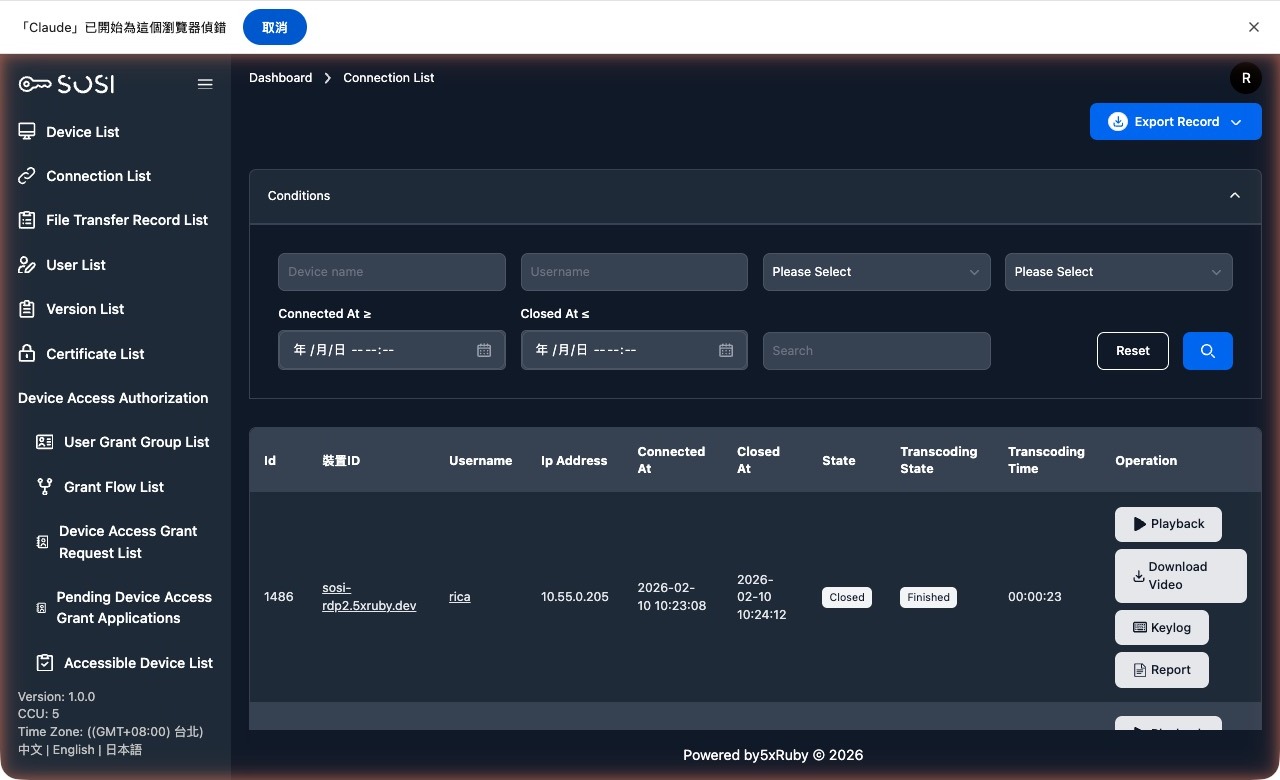
Connection Log List
This interface provides the connection history for all devices in the system.
Search Criteria
Administrators can use the filters at the top to quickly locate specific connections:
- Keyword Search: Supports filtering by “Device Name” or “User Account”.
- Time Range: Set “Connection Time >=” or “Disconnect Time <=” to filter logs within a specific time period.
- Dropdown Filters: Supports advanced filtering by specific statuses (e.g., connection status, transcoding status).
List Field Descriptions
The table displays detailed background information for each connection:
| Field | Description |
|---|---|
| ID | Unique identifier for the connection event |
| Device ID | Displays the device name and connection protocol for the session |
| User Account | The account of the person who initiated the connection |
| IP Address | The source or destination IP address of the connection |
| Connection Time / Disconnect Time | Records the exact start and end times of the connection |
| Status | Shows the current state of the connection (Ended, Connection Failed, Connected) |
| Transcoding Status & Duration | Displays the processing progress and transcoding duration of the screen recording file |
Actions
For completed connections with finished transcoding, administrators can perform the following audit actions:
- Playback: View the screen recording of the connection session directly online.
- Video Download: Download the MP4 video file of the connection session to local storage.
- Keystroke Log: Download the keystroke input log recorded during the connection (.txt format).
- Connection Report: Generate and download a comprehensive audit report for the connection.
- Export Connection Logs: Located in the upper-right corner of the page. Click to export all logs matching the current search criteria in bulk (.xlsx or .csv format).
File Transfer Log List
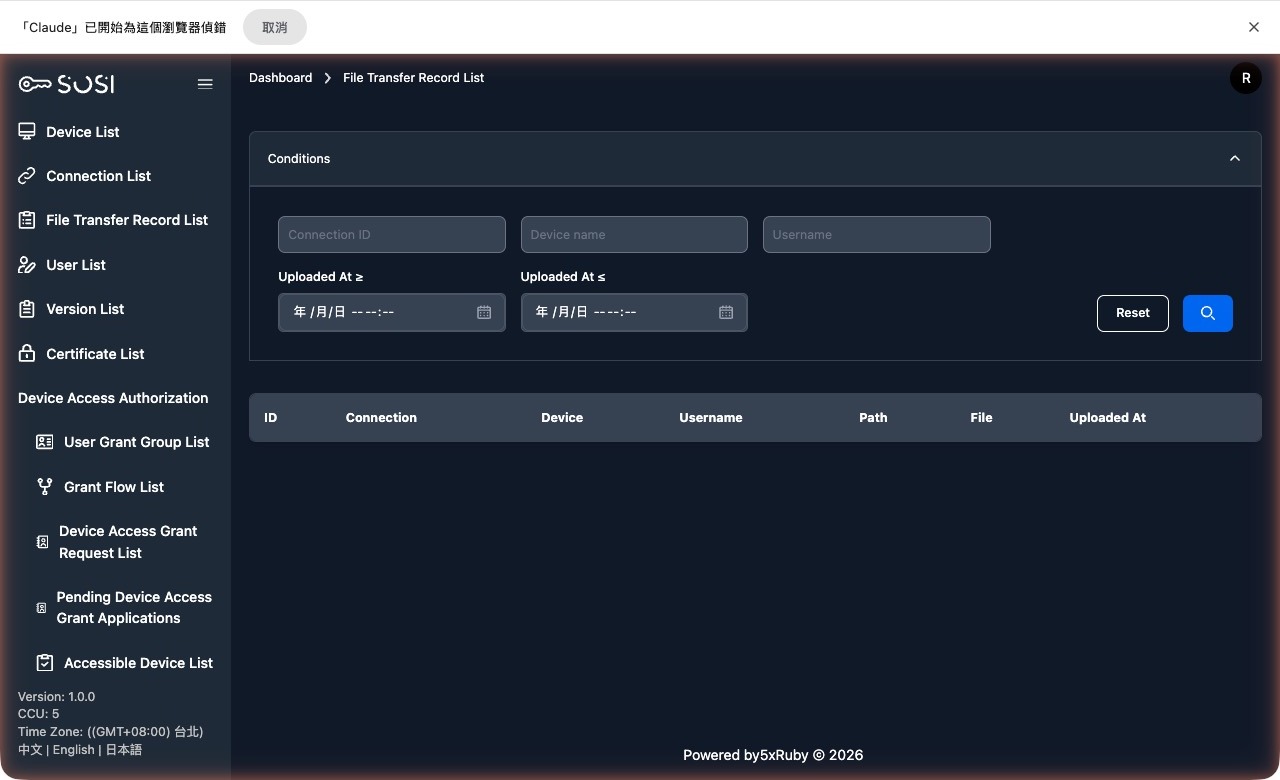
This list provides a detailed record of all file upload and download activities performed through the system, ensuring that every data transfer is fully traceable.
Prerequisites
The generation of file transfer logs requires that the remote device must first be allowed to perform file transfers:
- Configuration Location: In the “SFTP File Transfer” section of the “Device Settings” page.
- Enable Action: The administrator must check the “Enable File Transfer” option and provide the correct SFTP connection details (hostname, port, root directory, and authentication credentials).
- How It Works: Only when this feature is enabled at the device level will the system establish an SFTP channel during user connections, thereby capturing and logging file transfer activity.
List Information and Search
Administrators can review all historical records through the “File Transfer Log List” interface:
Search Criteria:
- Keyword Search: Supports filtering by “Connection ID”, “Device Name”, or “User Account”.
- Upload Time Range: Set “Upload Time >=” or “Upload Time <=” to precisely locate transfer activity within a specific time period.
Activity Log List
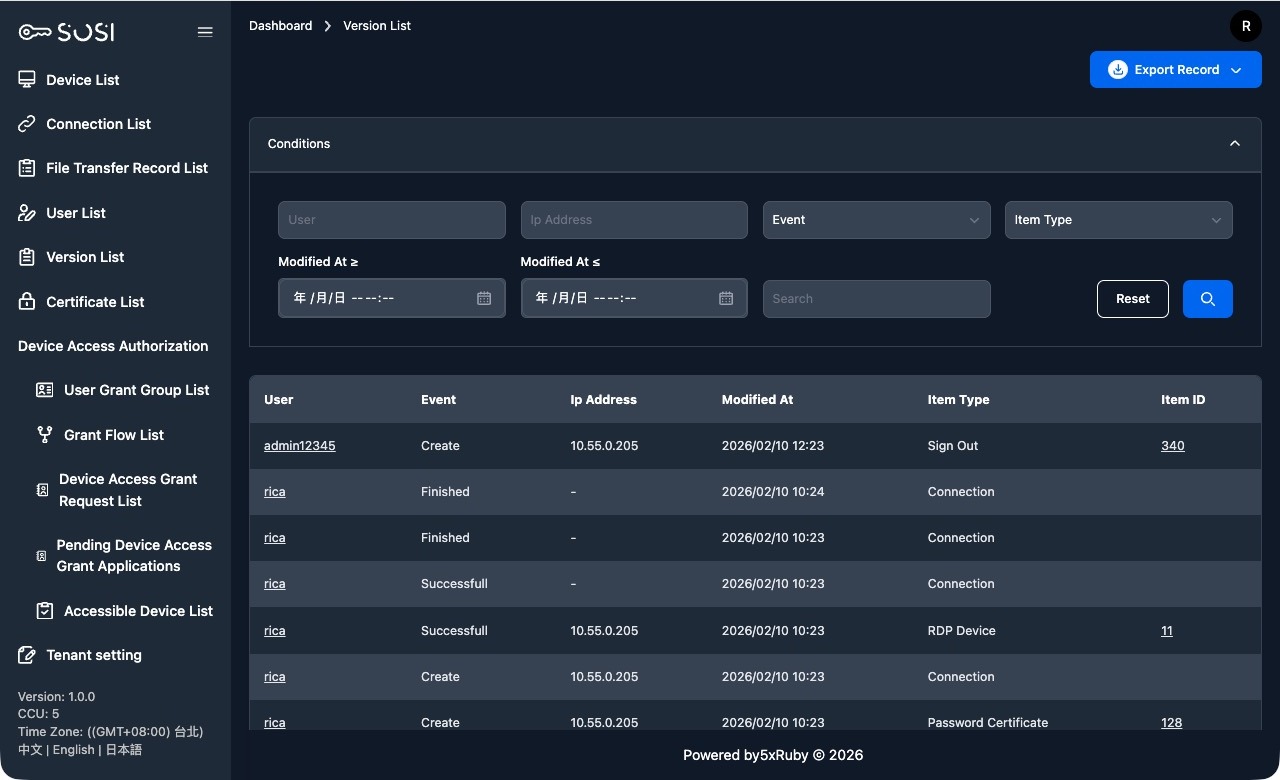
This module tracks the change history of all objects in the system (such as accounts, devices, and credentials), and is a core feature for ensuring management compliance.
System Management Activity Logs
When administrators or users make any modifications to system data, the system automatically retains a record:
- Trigger Mechanism: The system automatically generates a log entry when a database object undergoes a Create, Update, or Delete operation.
List Information and Search
Based on the activity log interface, administrators can use the following features for auditing:
Search Criteria:
- Keywords and Filters: Filter by “Operator”, “IP Address”, “Event Type” (e.g., Create), or “Item Type” (e.g., Login, Logout).
- Update Time Range: Set a time range (Update Time >= or <=) to locate changes within a specific period.
List Field Descriptions:
| Field | Description |
|---|---|
| Operator | The account of the person who performed the action |
| Event | The type of action (e.g., Create, Update) |
| IP Address | The source IP address of the operator at the time of the action |
| Update Time | The exact date and time when the action occurred |
| Item Type | The affected system module (e.g., Login, User, Device) |
| Item ID | The unique database ID of the affected object |