Device List
Device List
Displays information about devices currently available for connection. Administrators can view all devices in the system.
Searching Devices
The search box at the top matches both the device name and the IP / Hostname — a hit on either one lists the device. When device names are long, searching by IP is usually faster.
List Layout (Cards or Table)
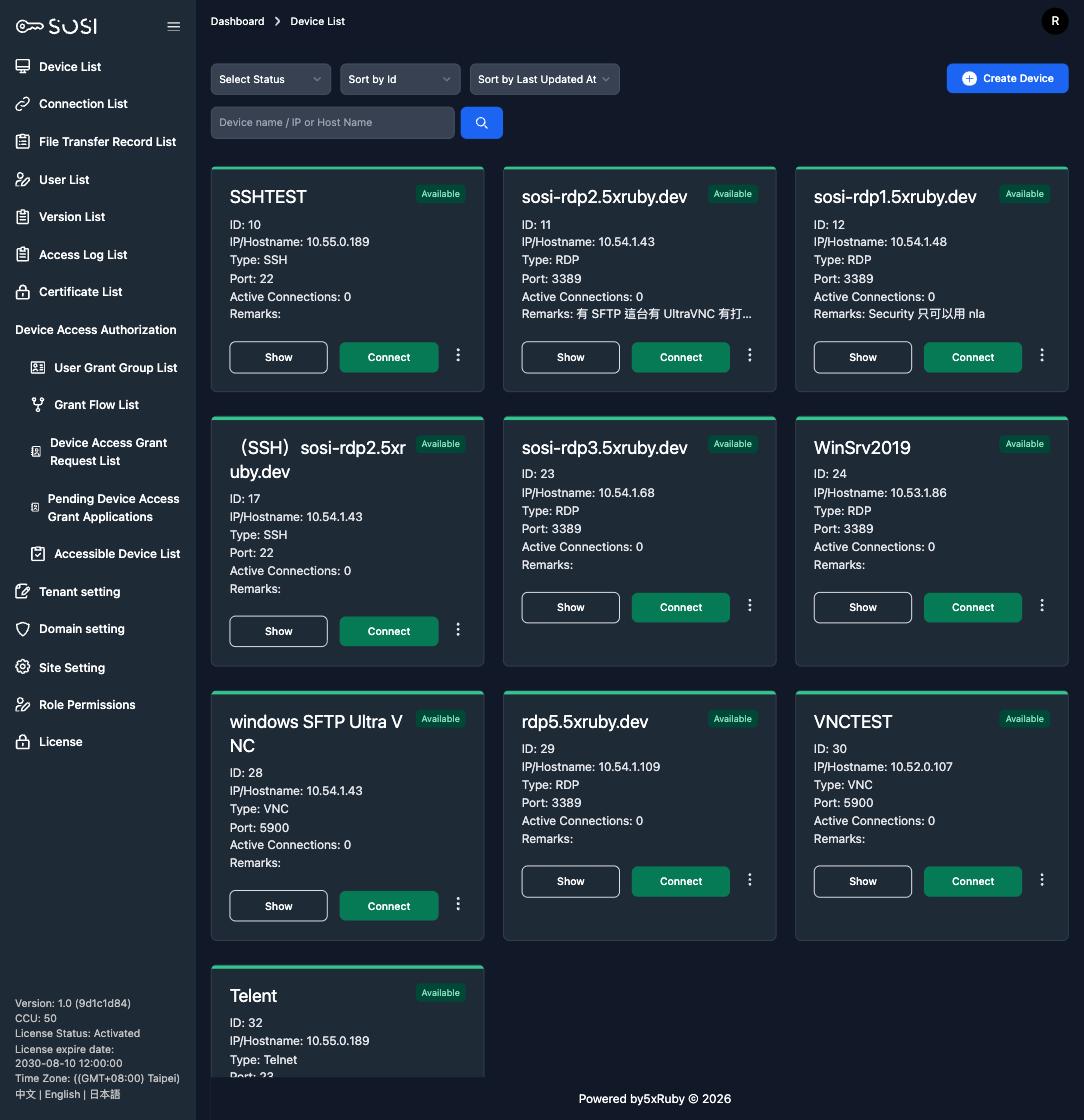
The device list offers two layouts, cards and table. Which one a user sees is set per role under Role Permissions → Device List Layout, so different roles can differ.
- Card layout: One card per device, spacious and easy to read — suited to regular users with a handful of devices.
- Table layout: One row per device, information-dense — suited to administrators who need to scan many devices at once.
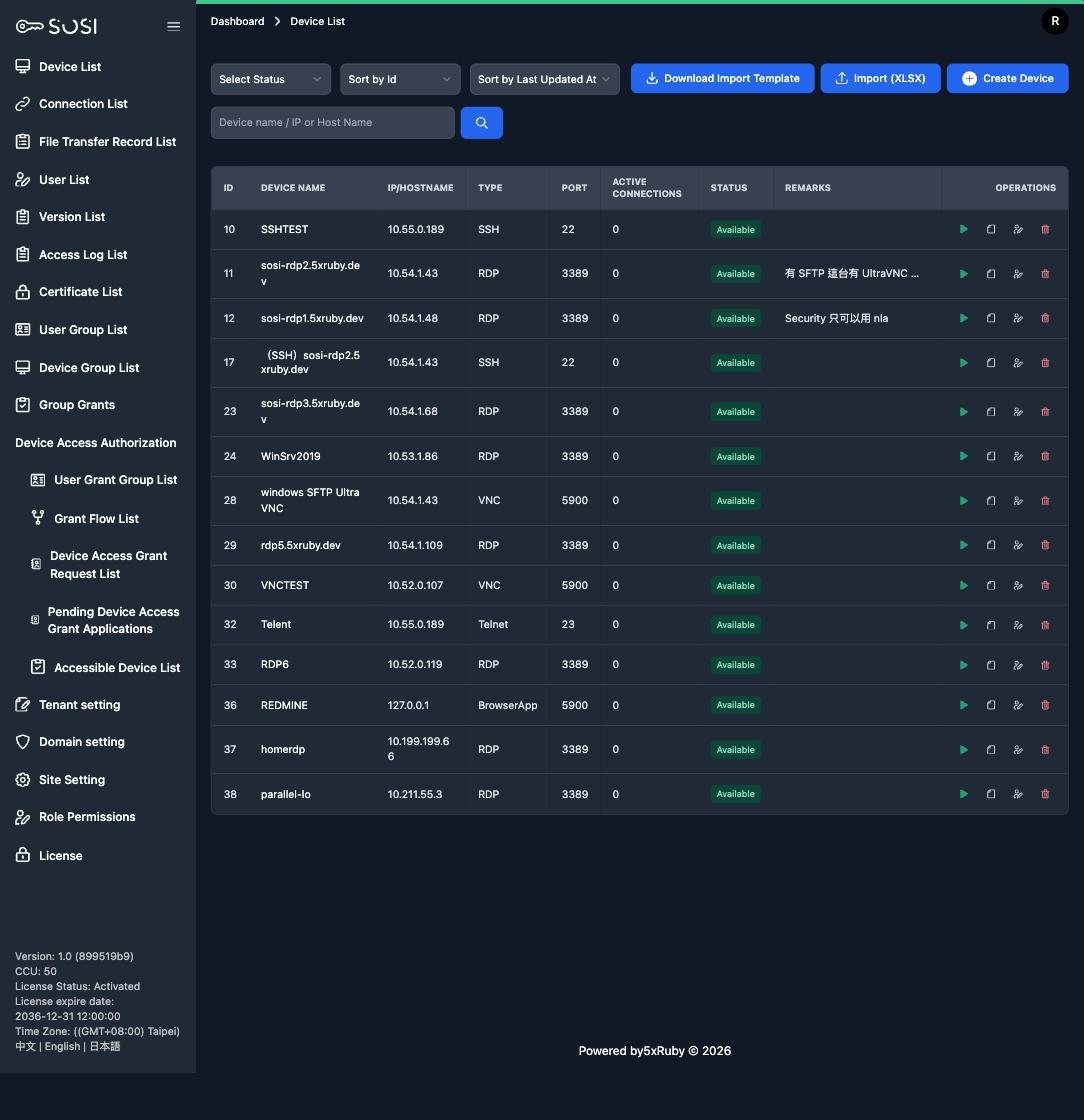
In the table layout the Operations column uses icon buttons: from left to right, connect, show, edit and delete. Hover over an icon to see what it does. Long remarks are truncated, with the full text shown on hover. On narrow windows the table scrolls horizontally.
The number of devices per page is configured in Site Settings, separately for each layout.
Device Card Information
Each device is displayed as a card containing the following key information:
- Device Name: The display name of the device within the system.
- Device ID: A unique identifier automatically assigned by the system.
- IP/Hostname: The network address or hostname of the device.
- Device Type: Supports the SSH, RDP, VNC and Telnet protocols, or BrowserApp (isolated browser access).
- Server Port: The communication port used by the protocol.
- Connection Status: Displays “Available” or “Connections Full”.
- Connected Users: The number of users currently connected to the device.
Add Device
- On the device list page, click “Create Device”.
- Enter the device information in the designated fields. The required fields vary depending on the device type (VNC/RDP/SSH parameters differ).
BrowserApp: To bring an internal web system rather than a remote host under management, choose the BrowserApp type — see BrowserApp Device Settings.
Bulk Device Import
When you need to create many devices at once, you can import them from a spreadsheet instead of filling in the Create Device form for each one.
Steps
- On the device list, click Download Import Template to get the xlsx template.
- Open the template and fill in one device per row. Every column heading in the first row carries a cell comment explaining how to fill that column — hover over it rather than going back to the documentation.
- Return to the device list, click Import (XLSX) and upload your file.
- The devices are created in the background and the result is reported on screen, including the number created and a list of any failures.
What the template covers
The template covers 22 columns: the core device fields, SFTP settings and connection policies — device name, address, type, port, maximum connections, remarks, owner email, certificate name, plus whether recording is enabled and whether copy, paste, upload and download are disabled.
Protocol-specific parameters (RDP resolution, SSH host key and the like) are not in the template — there are far too many of them, and including them all would produce a spreadsheet nobody could finish. Imported devices take the system defaults for these; adjust them afterwards on the individual device’s edit page.
Duplicates and failures
- Duplicates are detected on address + port, not on the device name. The same machine may legitimately be registered twice under the same name for RDP and SSH; what really identifies “the same service” is the address and port together.
- Rows that duplicate an existing device, or duplicate another row in the same file, are rejected and listed as failures. Existing devices are never overwritten.
- The certificate name column matches an existing certificate by name; a row fails if no match is found. SFTP and temporary certificates are not eligible.
- Recording columns remain subject to the site-wide mandatory recording policy — the spreadsheet cannot override it.
Missing columns are tolerated; wrong values are not. An older template that lacks columns added since will still import, with the missing columns taking their defaults. A required field left blank, however, is still rejected by validation.
User import and export now share one format. The xlsx exported from the user list uses the same columns as the import template, so adding the password column is enough to load it straight back in — nothing shifts out of alignment.
View Device
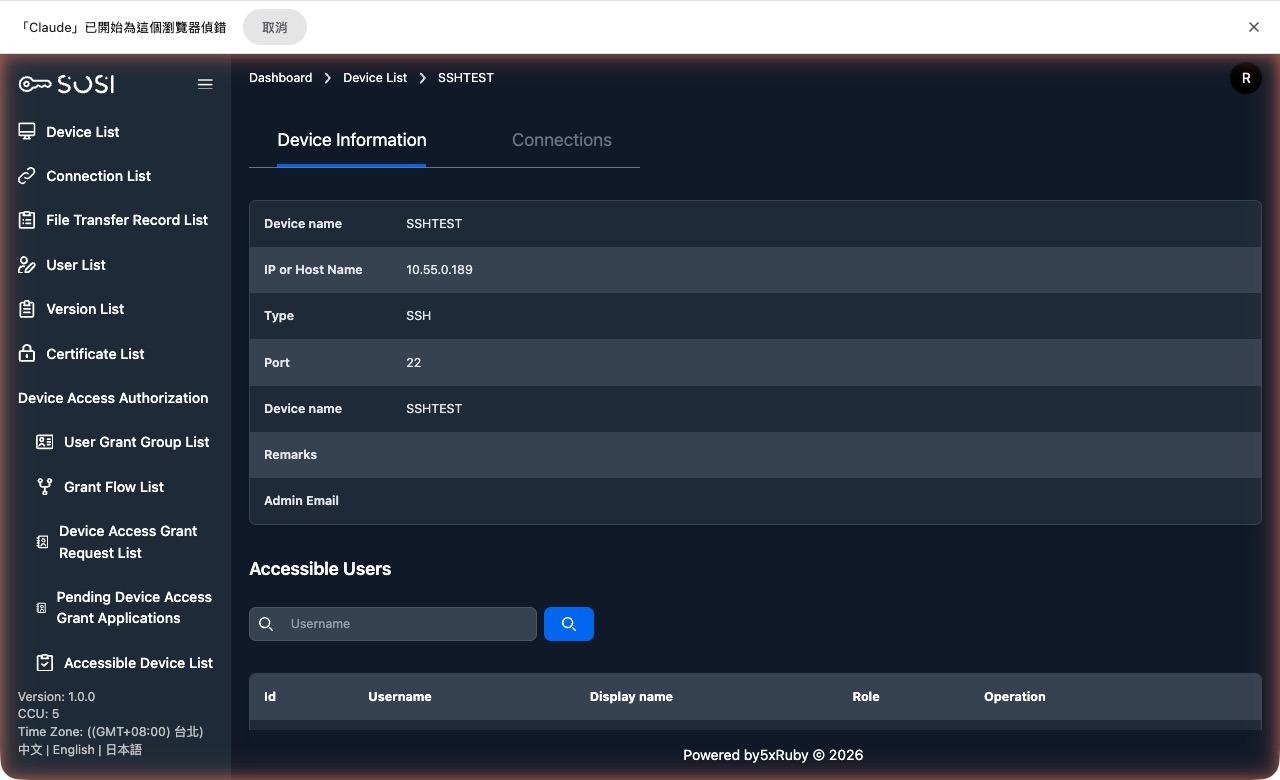
Device Information
Administrators can access the device detail page via the “View” function to review the resource’s configuration and access permissions.
- Device Name: Displays the device’s internal system name.
- Device IP / Hostname: The network address or hostname of the device.
- Device Type: SSH, RDP, VNC, Telnet, or BrowserApp.
- Server Port: The communication port used by the connection protocol.
- Notes: Additional remarks about the device.
- Contact Email: The email address of the device administrator.
Users with access permissions: This section shows the list of users currently authorized to use this device.
Connection Logs
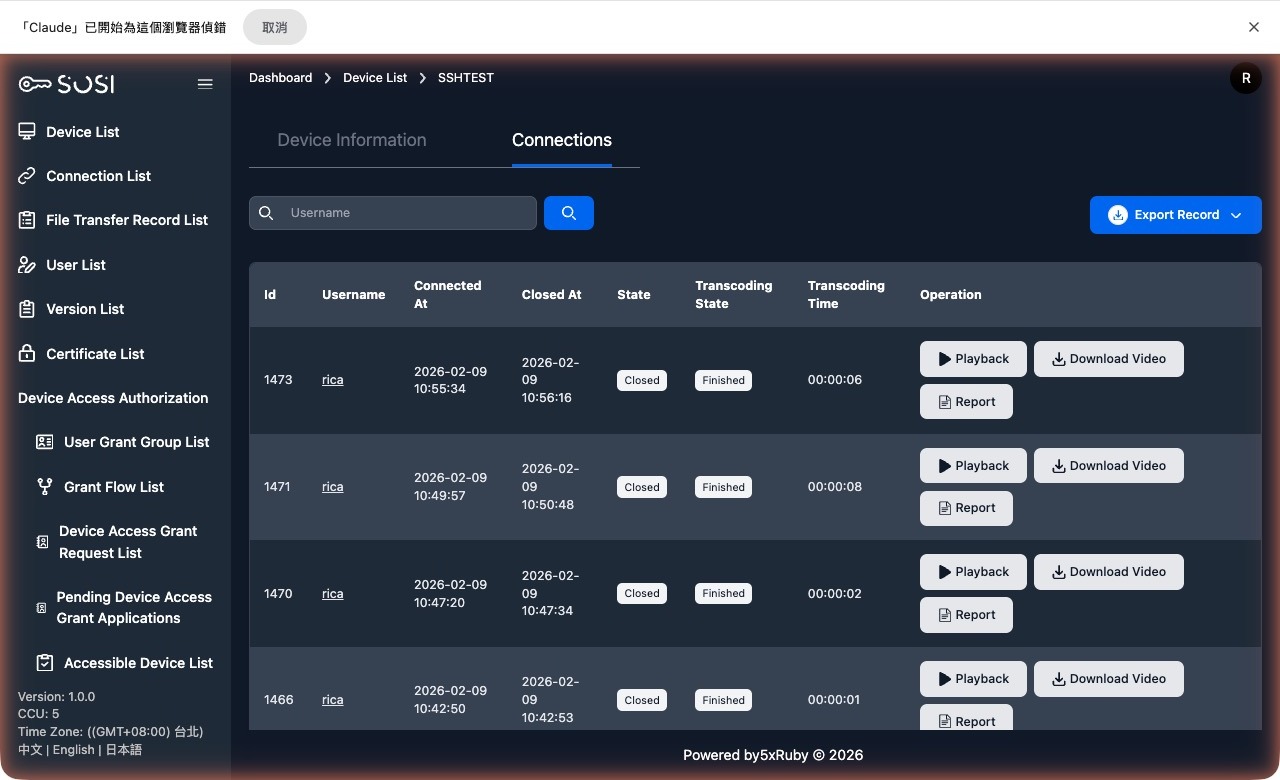
Log Field Descriptions:
- ID: The unique identifier for the connection event.
- User Account: The account of the person who initiated the connection.
- Connection Time / Disconnect Time: Records when the connection started and ended.
- Status: Shows the current state of the connection — “Connected”, “Ended”, or “Connection Failed”.
Actions:
- Playback (Screen Recording): Replay the complete screen capture from the connection session.
- Video Download: Download the screen recording file to local storage.
- Keystroke Log Download: Download the keystroke input log (.txt file) generated during the connection.
- Text Log Download (SSH/Telnet): For SSH or Telnet connections, download the compressed text output log from the session.
- Connection Report
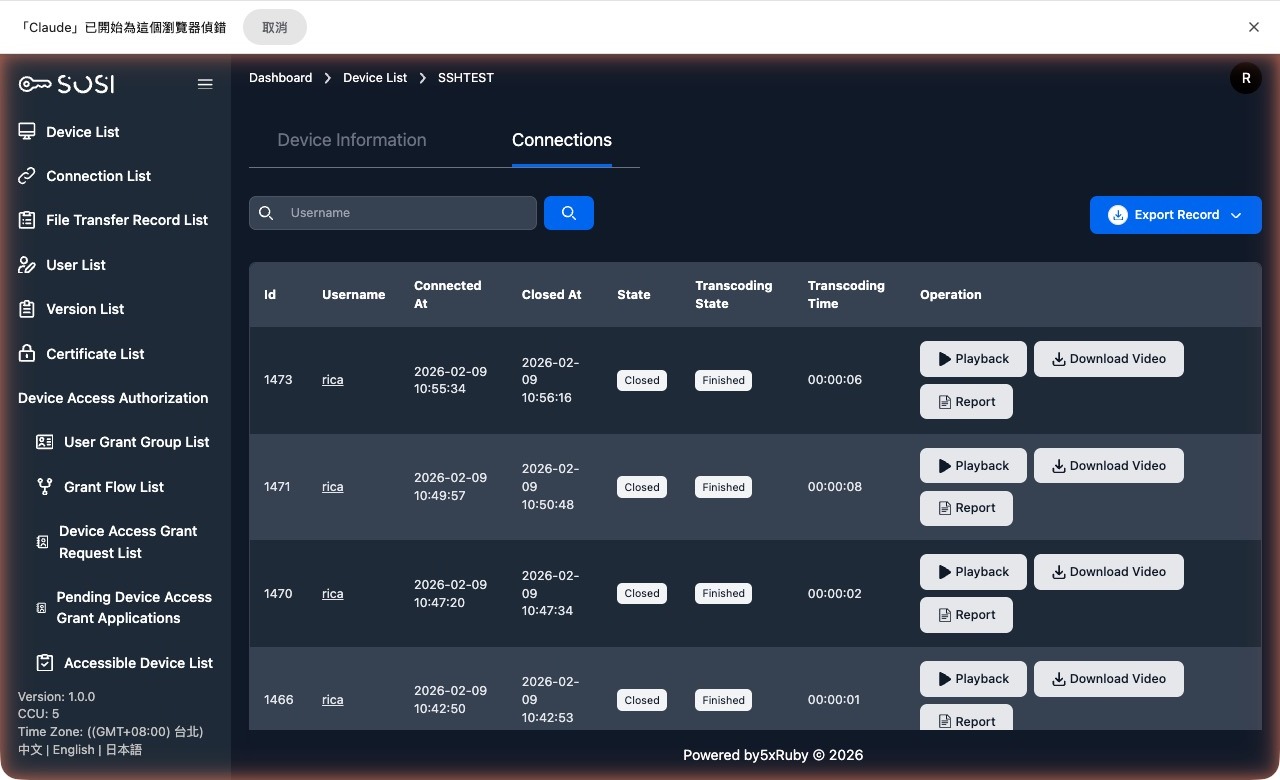
For active connections, administrators can click the force disconnect button or monitor the live session. A confirmation prompt will appear before force disconnecting — click “Confirm” to proceed.
Export Logs: Administrators can export connection logs in .xlsx or .csv format.
Edit Device
- On the device list page, click “Edit”.
- Modify the device information as needed.
Note: The required fields vary depending on the device type (VNC/RDP/SSH/Telnet).
Delete Device
- On the device list page, click “Delete”.
- The device will be removed from the system.
Device Settings
SFTP File Transfer Settings
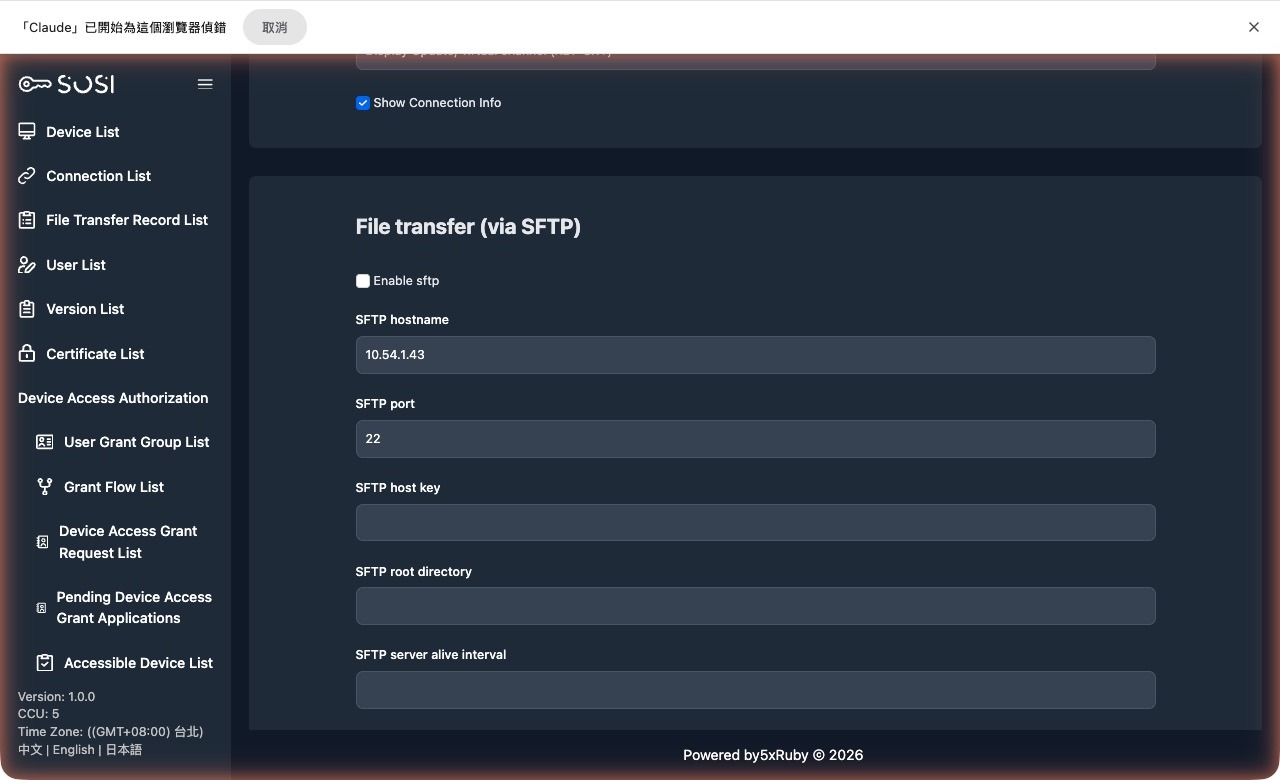
This section controls file transfer permissions between the local machine and the remote device.
- Enable SFTP: When checked, users can perform file transfers between the local machine and the remote device.
Connection Parameter Configuration:
| Parameter | Description |
|---|---|
| SFTP Hostname | The hostname or IP address of the SFTP service host |
| SFTP Port | The SSH service port for SFTP |
| SFTP Host Key | Enter the SFTP public key |
| SFTP Root Directory | Set the default root directory for file transfers |
| SFTP Server Alive Interval | Set the interval for SSH keep-alive packets |
SFTP Authentication Types:
- Password Certificate: Requires entering the corresponding username and password.
- PrivateKey Certificate: Requires entering the username, private key, and private key passphrase.
Text Logging (Typescript Logging)
For SSH and Telnet device types, text logging can be enabled:
- Enable Text Logging: When checked, the system automatically records the text output during a session and compresses it for later audit and download.
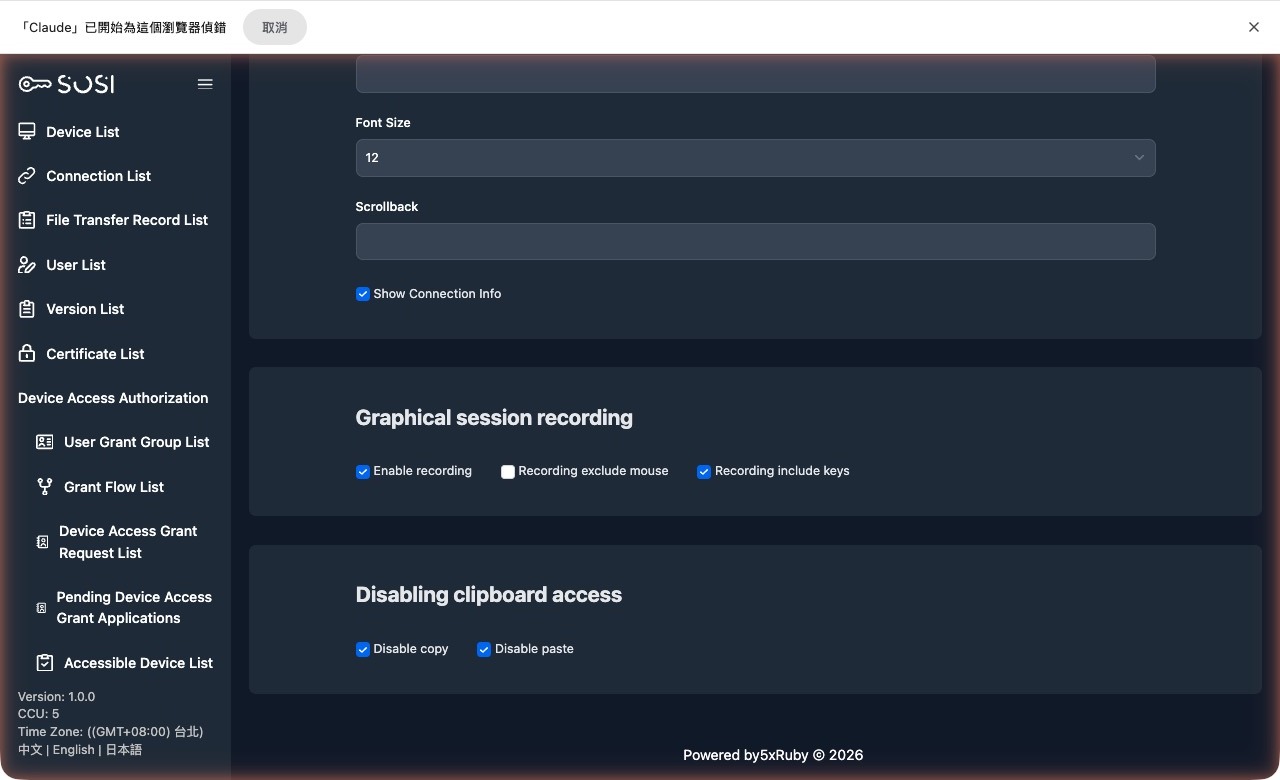
Graphical Session Recording
This section provides comprehensive settings for operational activity auditing.
- Enable Recording: When checked, the system will automatically start screen recording when a user connects.
- Exclude Mouse Cursor from Recording: When checked, the recording will hide the user’s mouse cursor movements and click actions.
- Enable Keystroke Logging with Recording: When checked, the system will simultaneously log all text input during the connection session and generate a .txt keystroke log file for subsequent auditing.
Disable Clipboard Access
This feature prevents sensitive data from being copied in or out of the remote device.
- Disable Copy: When enabled, users cannot copy data from the remote device to their local machine.
- Disable Paste: When enabled, users cannot paste data from their local machine to the remote device.