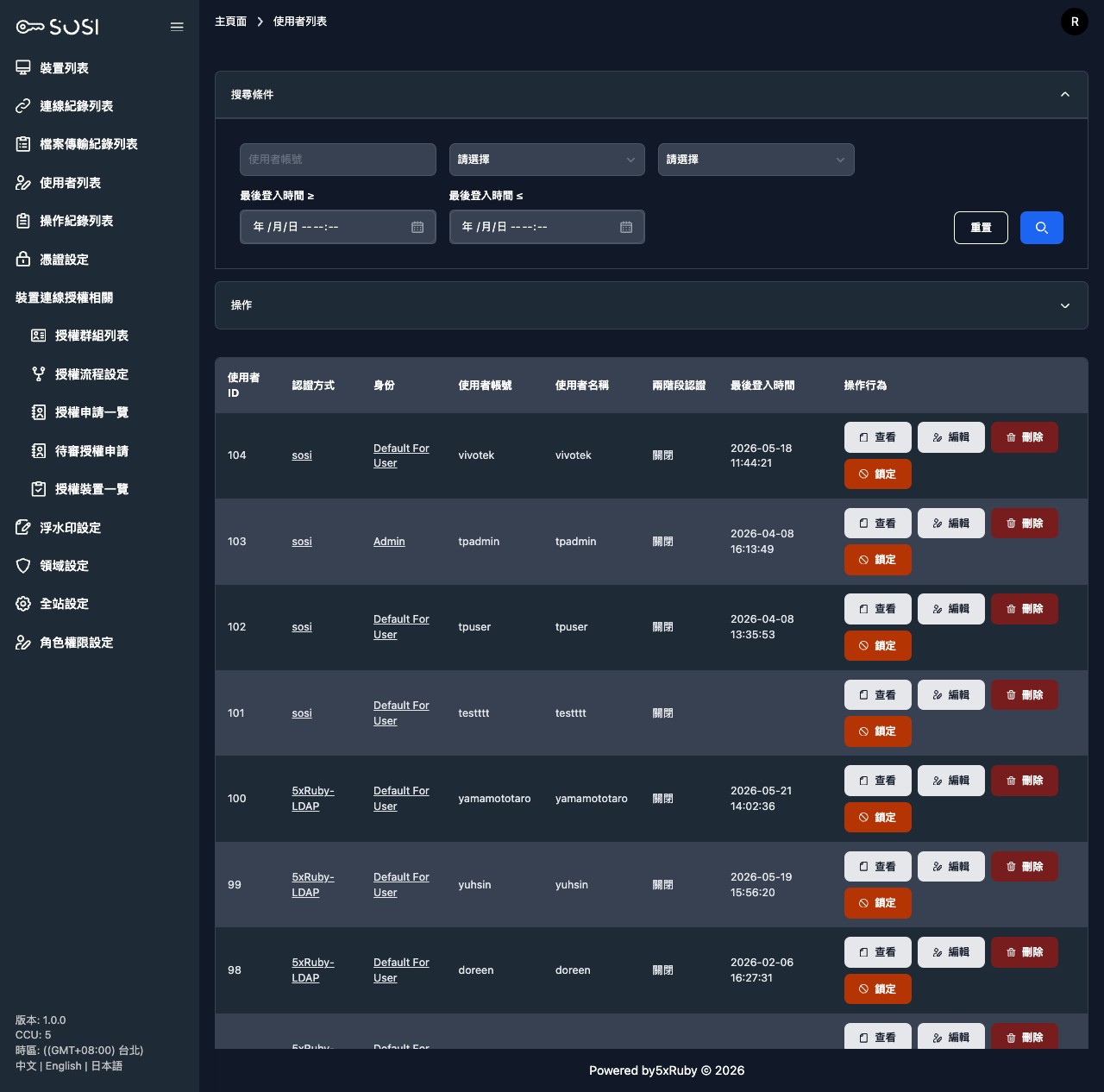
User List
User Information and List
Search and Filter
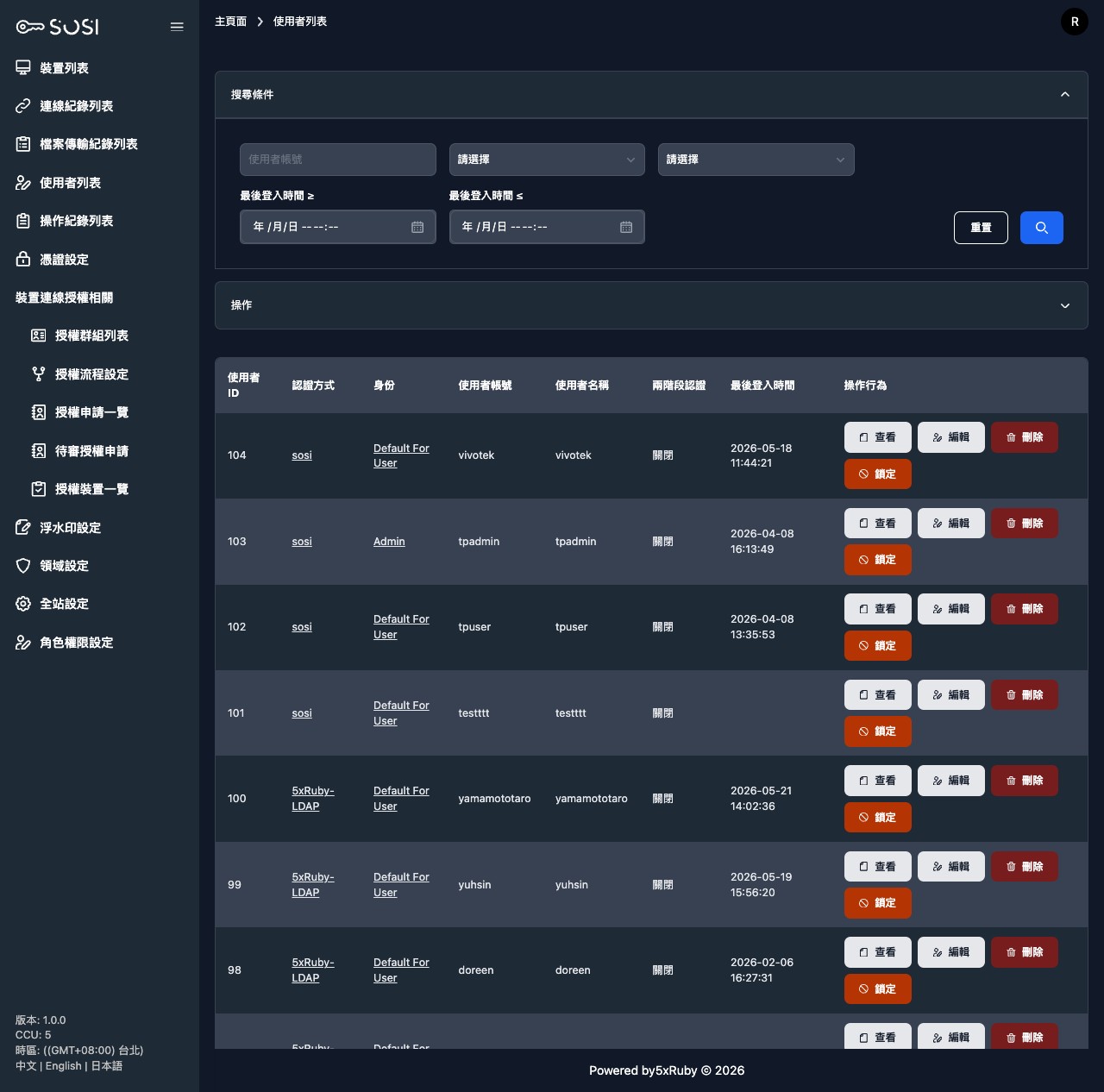
Administrators can use multiple filter criteria to quickly locate users:
| Filter | Description |
|---|---|
| Username | Keyword search for fuzzy matching |
| Role | Filter users by role (e.g., Admin, Default For User) |
| 2FA Status | Filter by two-factor authentication status (enabled/disabled) |
| Last Login Time | Set a date range to find users who logged in within that period |
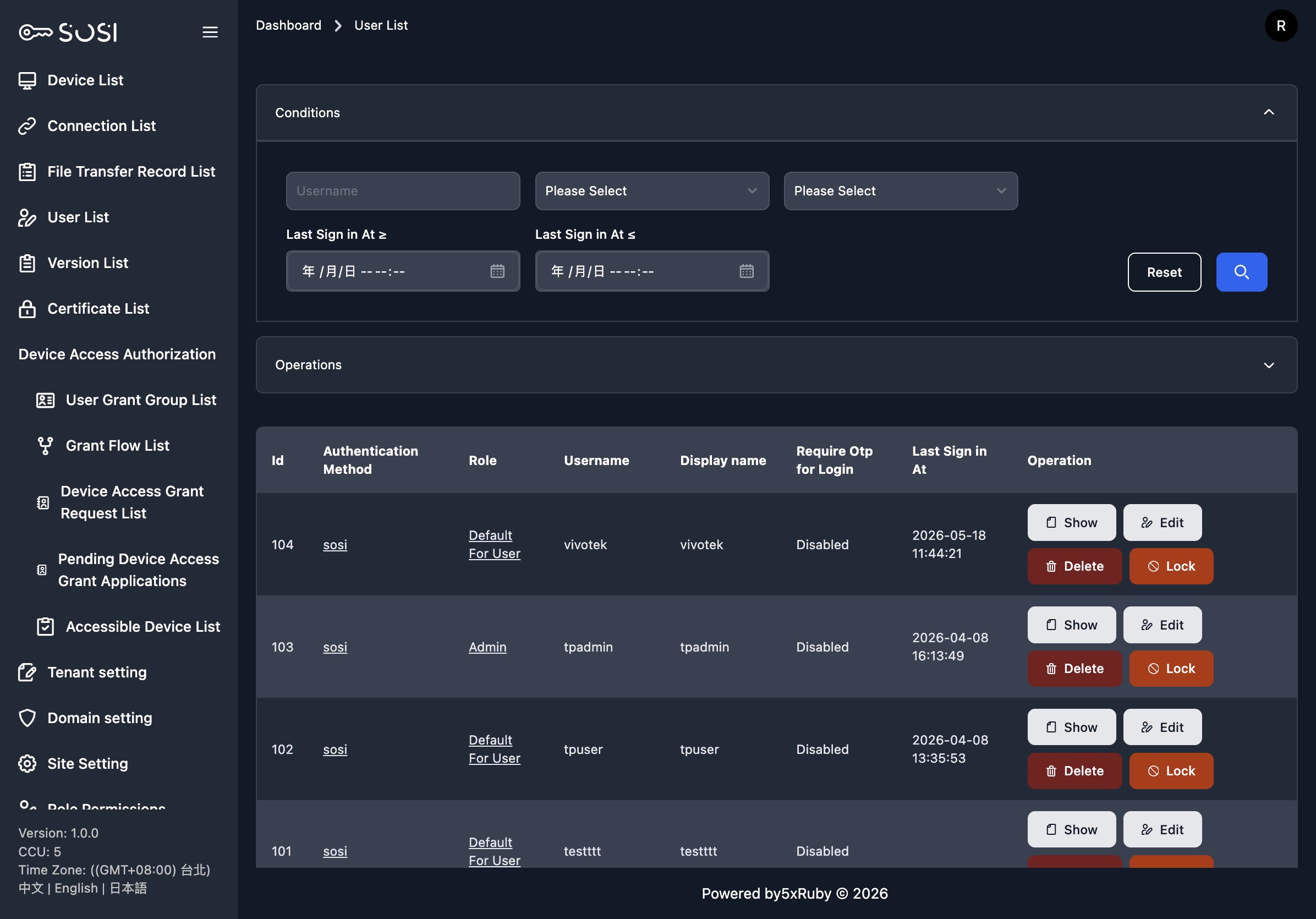
List Field Descriptions
The list displays the user ID, authentication method (e.g., LDAP or SOSI), user account, name, role, 2FA enabled status, and last login time. The role column includes a show link to view the role’s permission settings.
Batch Import and Create User
Two independent buttons are available at the bottom of the page:
- Import (XLSX): Upload .xlsx files to batch create user accounts.
- Create User: Manually add a single user.
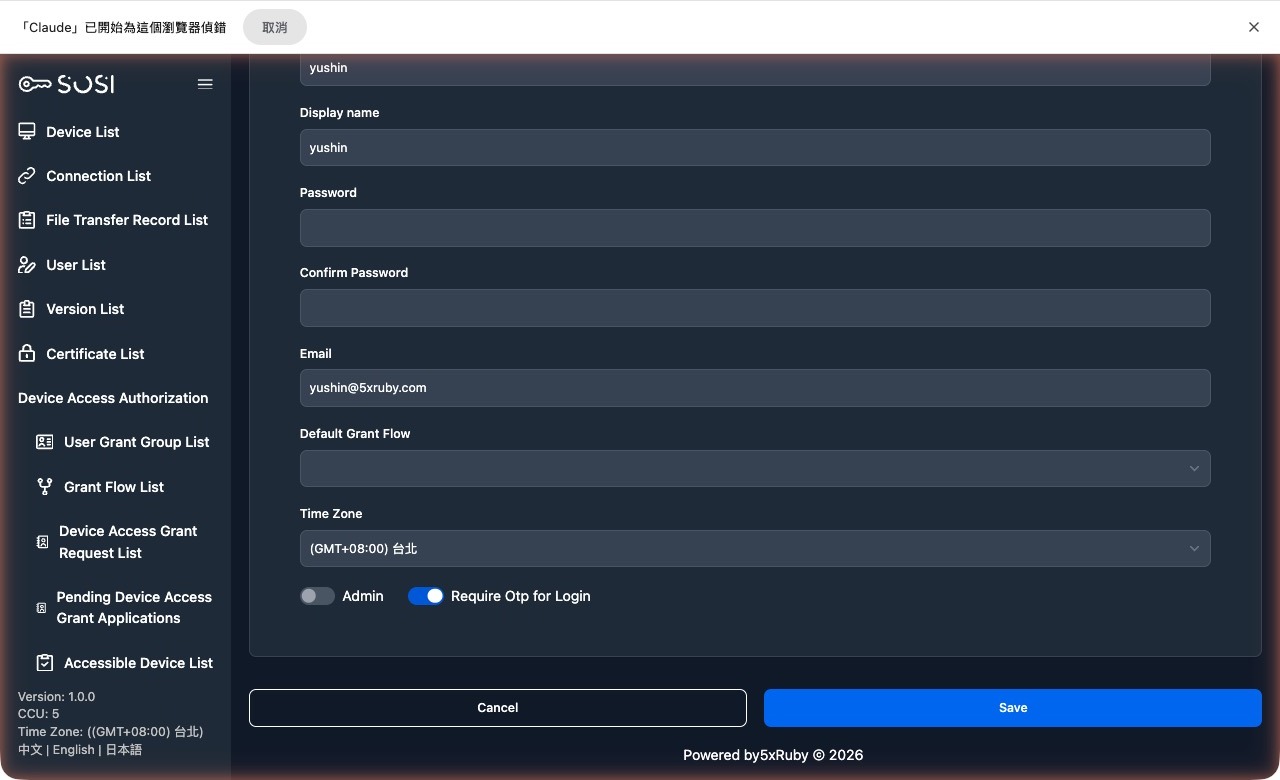
Account Maintenance
Create and Edit
Administrators can manually add users or navigate to the edit page to modify account details, name, email address, role assignment, and timezone settings.
Role replaces the old admin flag: Use the “Role” dropdown to assign a role to the user, instead of the old “Admin / Normal User” toggle.
Clear individual device grants before promoting to administrator: A user cannot be promoted to an administrator role while individual connection authorizations remain on the account; the system blocks the change and asks you to remove them first. Administrators can reach every device anyway, and leaving the old grants in place means they would silently apply again if the account is later demoted.
LDAP Sync
For users in an LDAP authentication domain, administrators can click the “Sync” button on the user binding page to instantly synchronize the user’s information from the LDAP server via Turbo Stream.
Delete Account
Administrators can remove user accounts that are no longer needed from the system.
View Records
- User Information: View the user’s configuration details and assigned role.
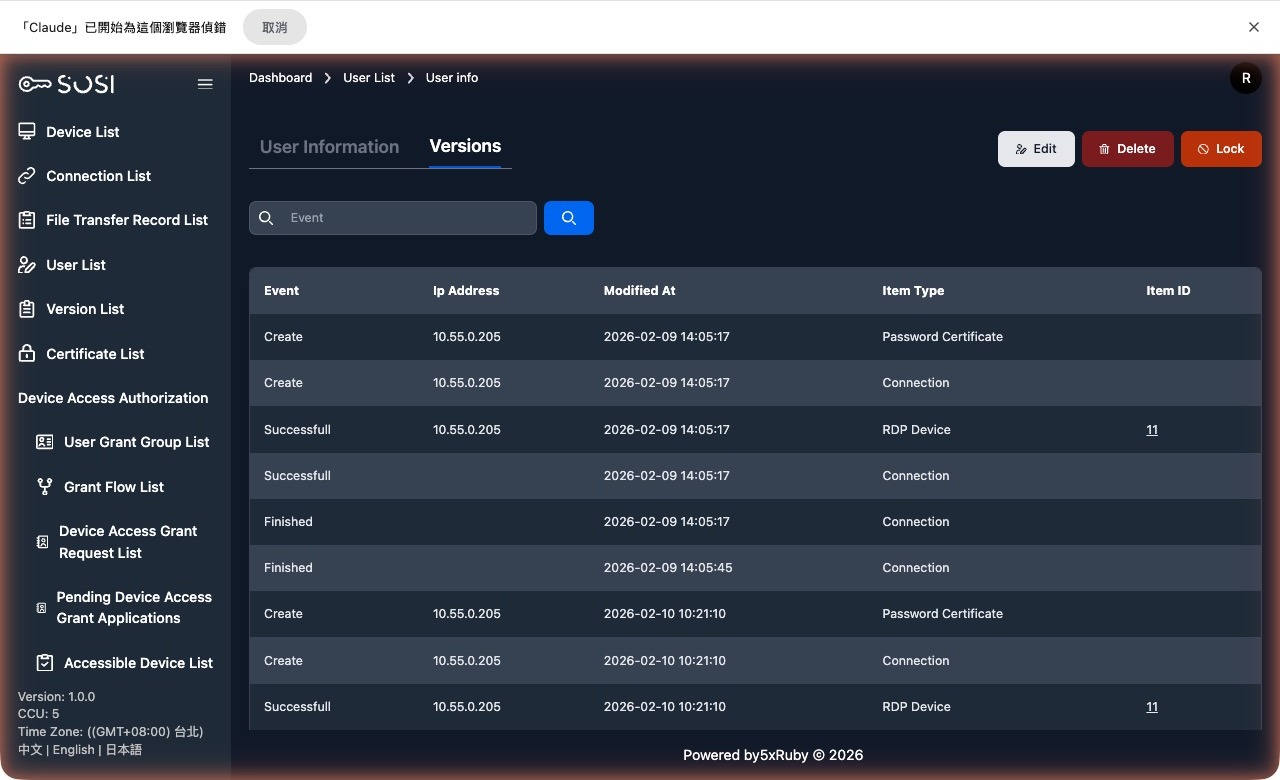
- Activity Log: Includes actions performed by the user, source IP address, update time, item type, and item ID. Supports filtering by event type.
Two-Factor Authentication
Enable Settings
This path applies to individual users. To enable 2FA for all users, go to Site Settings.
Reset 2FA Button: If a user has already enabled two-factor authentication but needs to reconfigure it (e.g., due to a lost device), the administrator can click this button to allow the user to set up 2FA again upon their next login.