
Watermark Settings
The watermark feature is a core protection mechanism for preventing data leakage. When users establish remote connections, the watermark is displayed in real time on the connection screen. If sensitive data is leaked (e.g., via screen capture), administrators can use the watermark to trace the source.
Synchronized Auditing: In addition to the live connection screen, watermarks are also displayed in the screen recording files generated from device connections.
Configuration Options
- Enable Watermark: Administrators can enable or disable the system-wide watermark feature as needed.
- Font Family and Size: Customize the display font (e.g., sans-serif) and text size (px).
- Text Color and Opacity: Administrators can set the text color and adjust the opacity (%) to balance security with operational visibility.
- Image Dimensions: Supports configuring the watermark image width and height (px), as well as the spacing between images (px).
Role-Level Exemption
In addition to the system-wide toggle, the watermark can be disabled for a specific role: check “Hide watermark on connections” in the role settings, and users holding that role will not see a watermark during their sessions.
A typical use case is a physician role, where the watermark interferes with reading medical images.
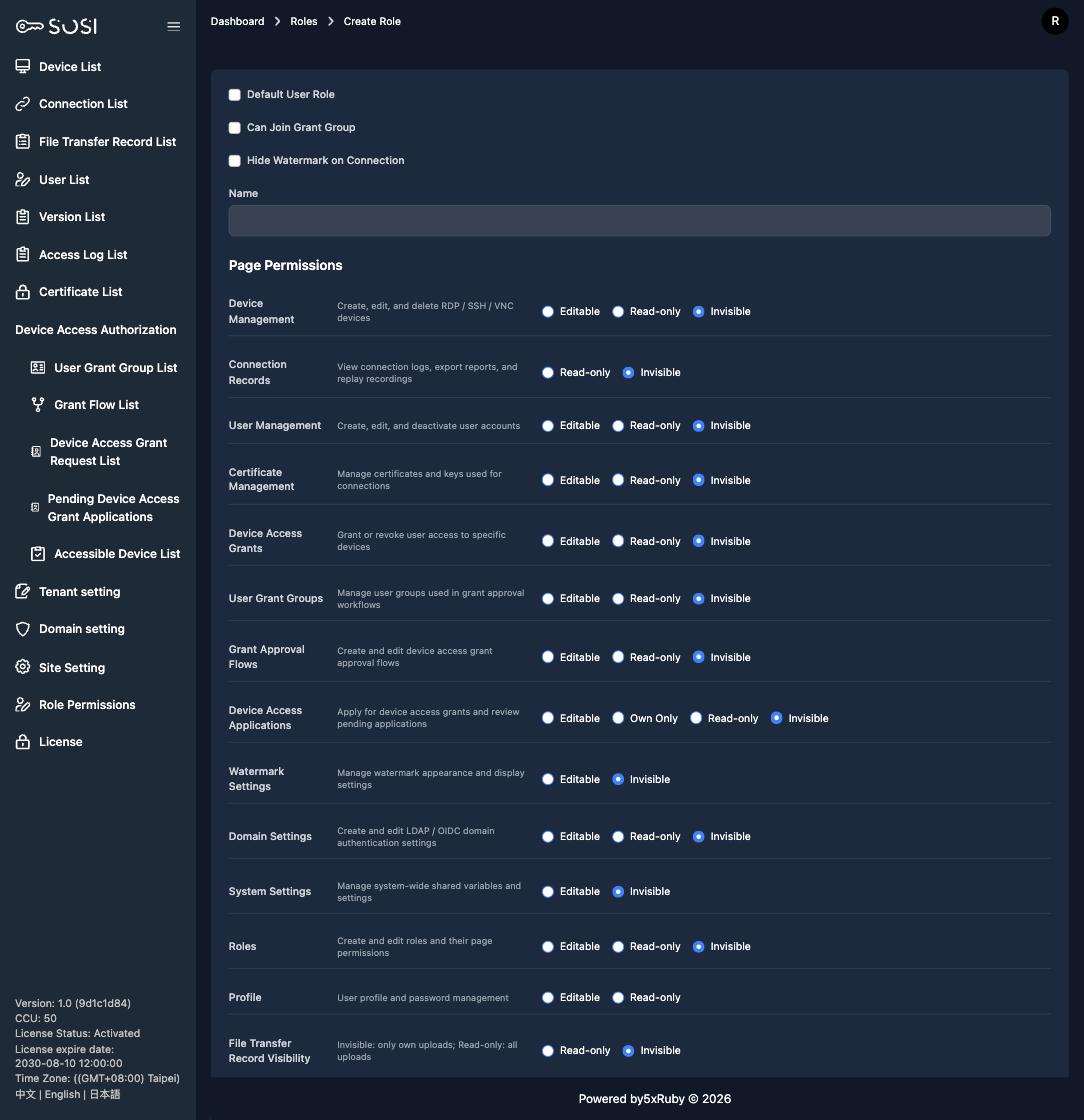
Note: This is a role-level exception and is unchecked by default (the watermark stays visible). Monitoring another user’s session never shows a watermark and is unaffected by this setting.
Watermark Image Upload
- Format Restriction: Only PNG format files are accepted.
- Size Limit: Maximum file size is 1MB per file.