Security Audit
Connection Log List
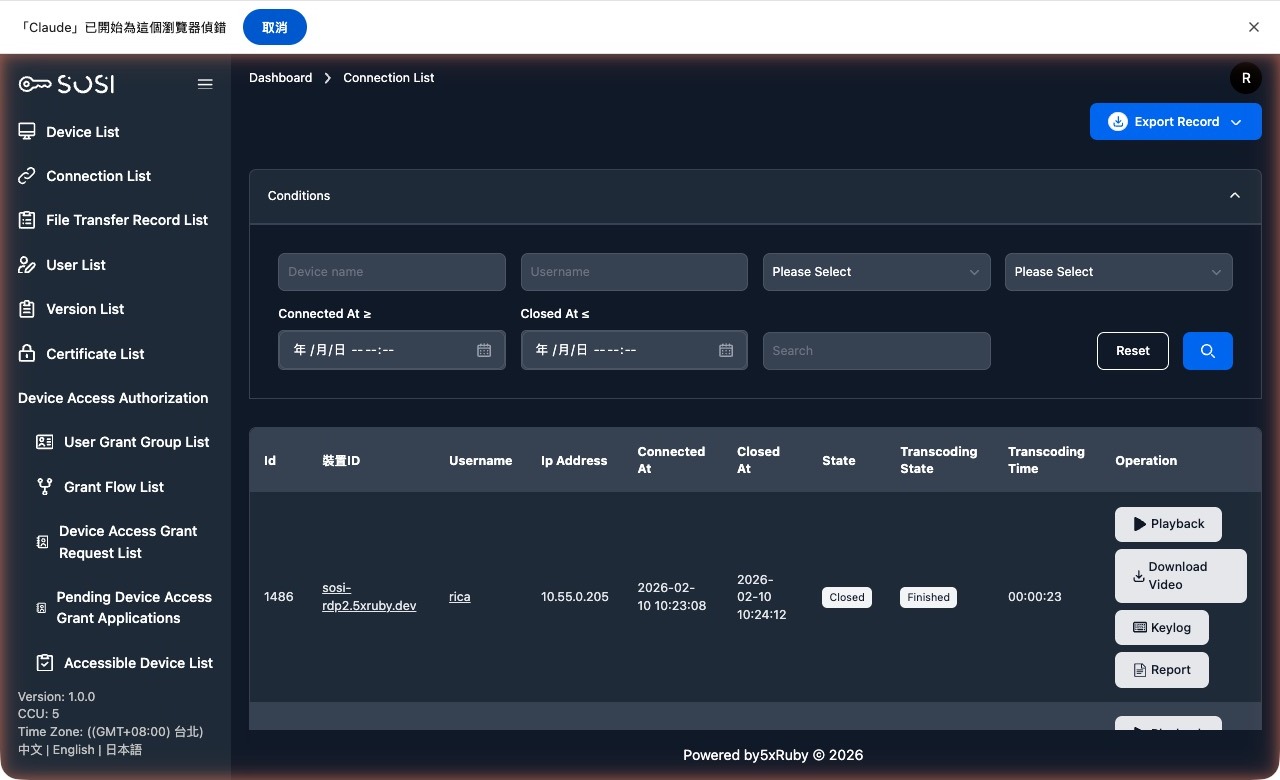
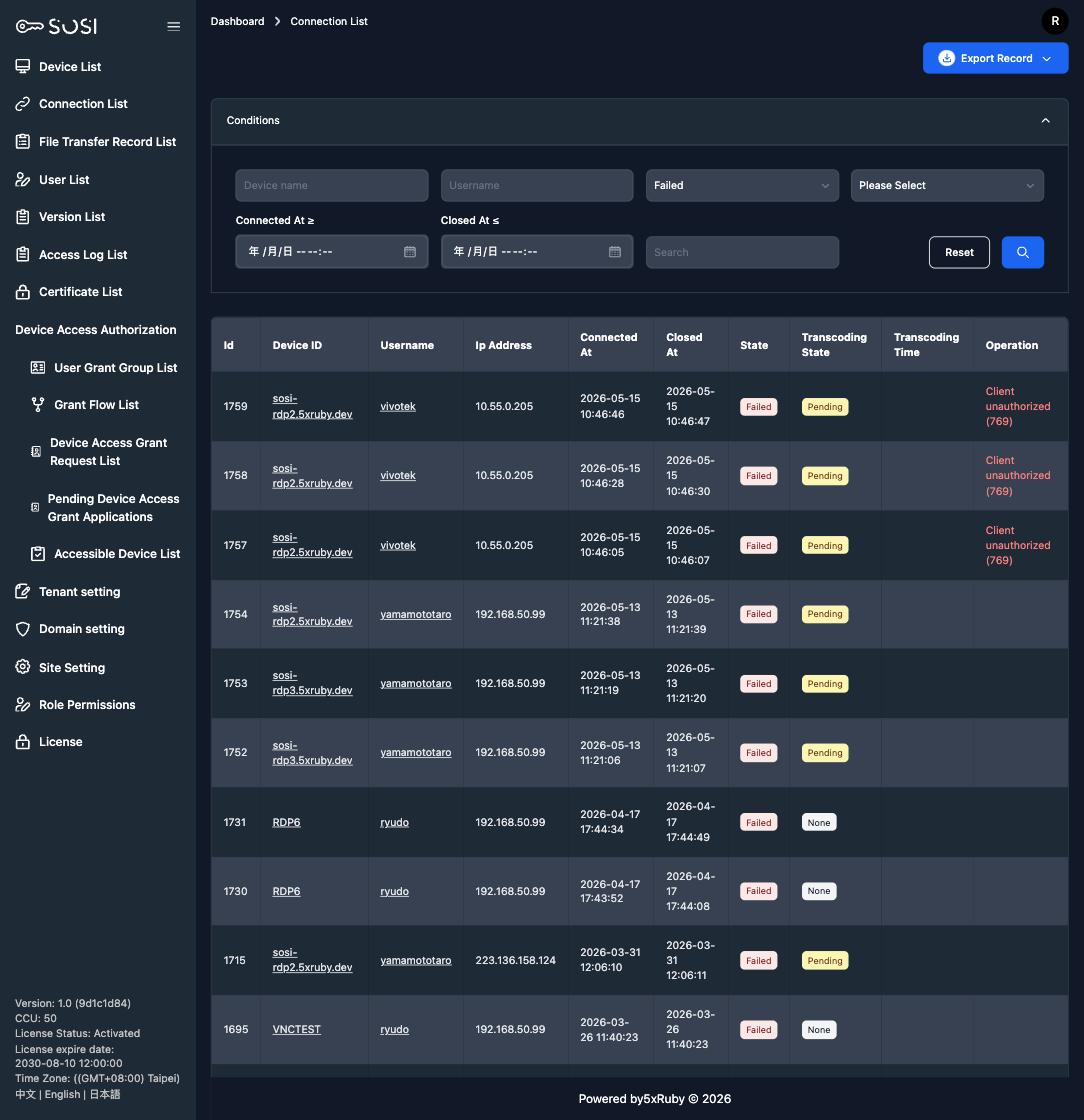
This interface provides the connection history for all devices in the system.
Search Criteria
Administrators can use the filters at the top to quickly locate specific connections:
- Keyword Search: Supports filtering by “Device Name” or “User Account”.
- Time Range: Set “Connection Time >=” or “Disconnect Time <=” to filter logs within a specific time period.
- Dropdown Filters: Supports advanced filtering by specific statuses (e.g., connection status, transcoding status).
List Field Descriptions
The table displays detailed background information for each connection:
| Field | Description |
|---|---|
| ID | Unique identifier for the connection event |
| Device ID | Displays the device name and connection protocol for the session |
| User Account | The account of the person who initiated the connection |
| IP Address | The source or destination IP address of the connection |
| Connection Time / Disconnect Time | Records the exact start and end times of the connection |
| Status | Shows the current state of the connection (Ended, Connection Failed, Connected). For failed connections, hover over the status badge to see the failure reason |
| Failure Reason | For failed connections, records the error message returned by guacd; also included in exported files |
| Transcoding Status & Duration | Displays the processing progress and transcoding duration of the screen recording file |
Actions
For completed connections with finished transcoding, administrators can perform the following audit actions:
- Playback: View the screen recording of the connection session directly online.
- Video Download: Download the MP4 video file of the connection session to local storage.
- Convert to MP4: When automatic MP4 conversion is turned off in Site Settings, sessions do not produce an MP4 on their own. An administrator converts the recording here on demand and is notified once it is ready. Recordings that have not been converted can still be played back directly.
- Keystroke Log: Download the keystroke input log recorded during the connection (.txt format).
- Connection Report: Generate and download a comprehensive audit report for the connection.
- Download Encrypted Recording: Downloads the recording packaged with 7-Zip AES-256 encryption (filenames encrypted as well). The system encrypts the file in the background and then displays the extraction password and a download link. Clicking again within the retention window reuses the existing file and password instead of re-encrypting. The retention period and the feature toggle are configured in Site Settings.
- Export Connection Logs: Located in the upper-right corner of the page. Click to export all logs matching the current search criteria in bulk (.xlsx or .csv format).
SFTP failure hint: If the device has file transfer enabled and the connection fails shortly after being established, the system appends a hint to the error message pointing at a possible incorrect SFTP hostname or port, instead of only showing a generic upstream error. This applies to every device type that supports SFTP (RDP / SSH / VNC / Telnet).
File Transfer Log List
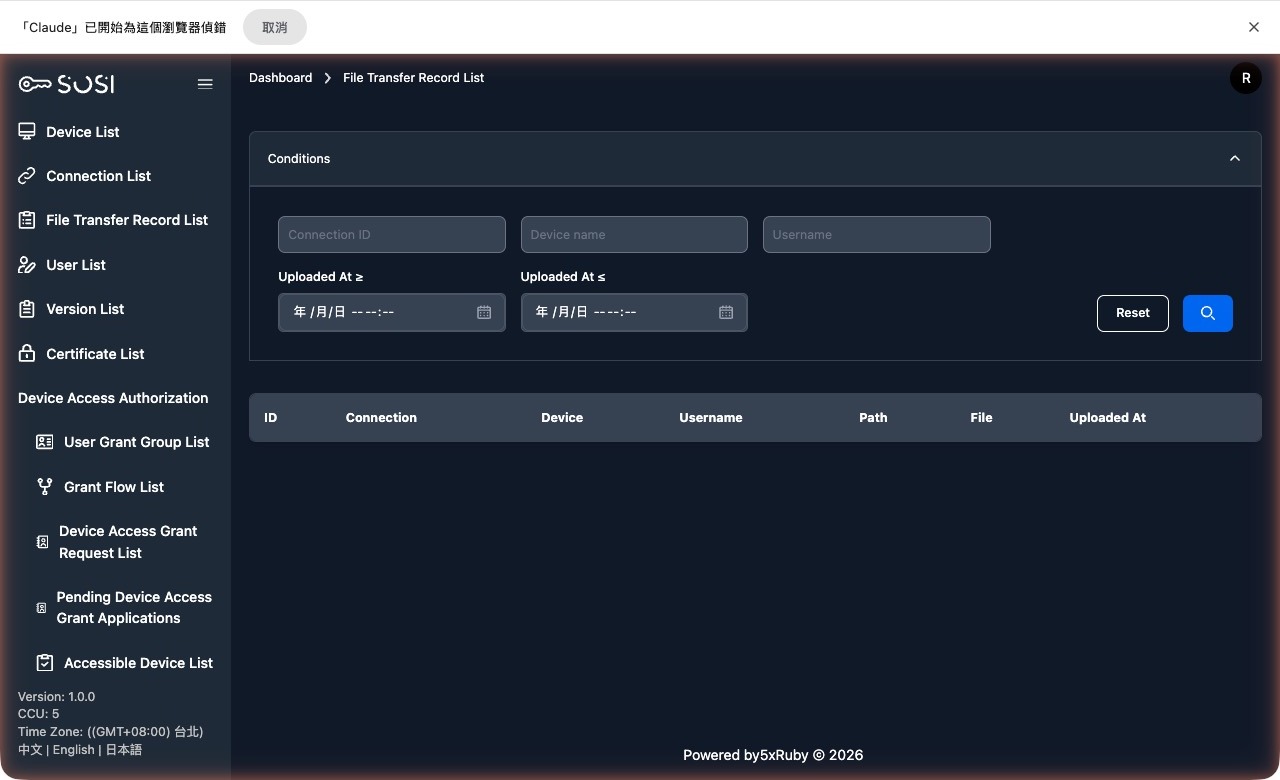
This list provides a detailed record of all file upload and download activities performed through the system, ensuring that every data transfer is fully traceable.
Prerequisites
The generation of file transfer logs requires that the remote device must first be allowed to perform file transfers:
- Configuration Location: In the “SFTP File Transfer” section of the “Device Settings” page.
- Enable Action: The administrator must check the “Enable File Transfer” option and provide the correct SFTP connection details (hostname, port, root directory, and authentication credentials).
- How It Works: Only when this feature is enabled at the device level will the system establish an SFTP channel during user connections, thereby capturing and logging file transfer activity.
List Information and Search
Administrators can review all historical records through the “File Transfer Log List” interface:
Search Criteria:
- Keyword Search: Supports filtering by “Connection ID”, “Device Name”, or “User Account”.
- Upload Time Range: Set “Upload Time >=” or “Upload Time <=” to precisely locate transfer activity within a specific time period.
Access Logs
Activity logs only capture writes — records created, updated, or deleted. They cannot capture read-only behaviour. Access logs fill that gap by recording read operations, so auditors can answer “who looked at what”.
Recorded Actions
| Action | Trigger |
|---|---|
| Monitor | An administrator watches another user’s live session |
| Playback | Playing back or streaming the screen recording of a closed connection |
| Download | Downloading a recording, an encrypted recording, a keylog, or a typescript |
Each entry records the user, the related connection, the action, the source IP, and the timestamp.
List and Export
- Search and pagination: Filter by user, action type, and time range.
- Export: Supports .xlsx and .csv.
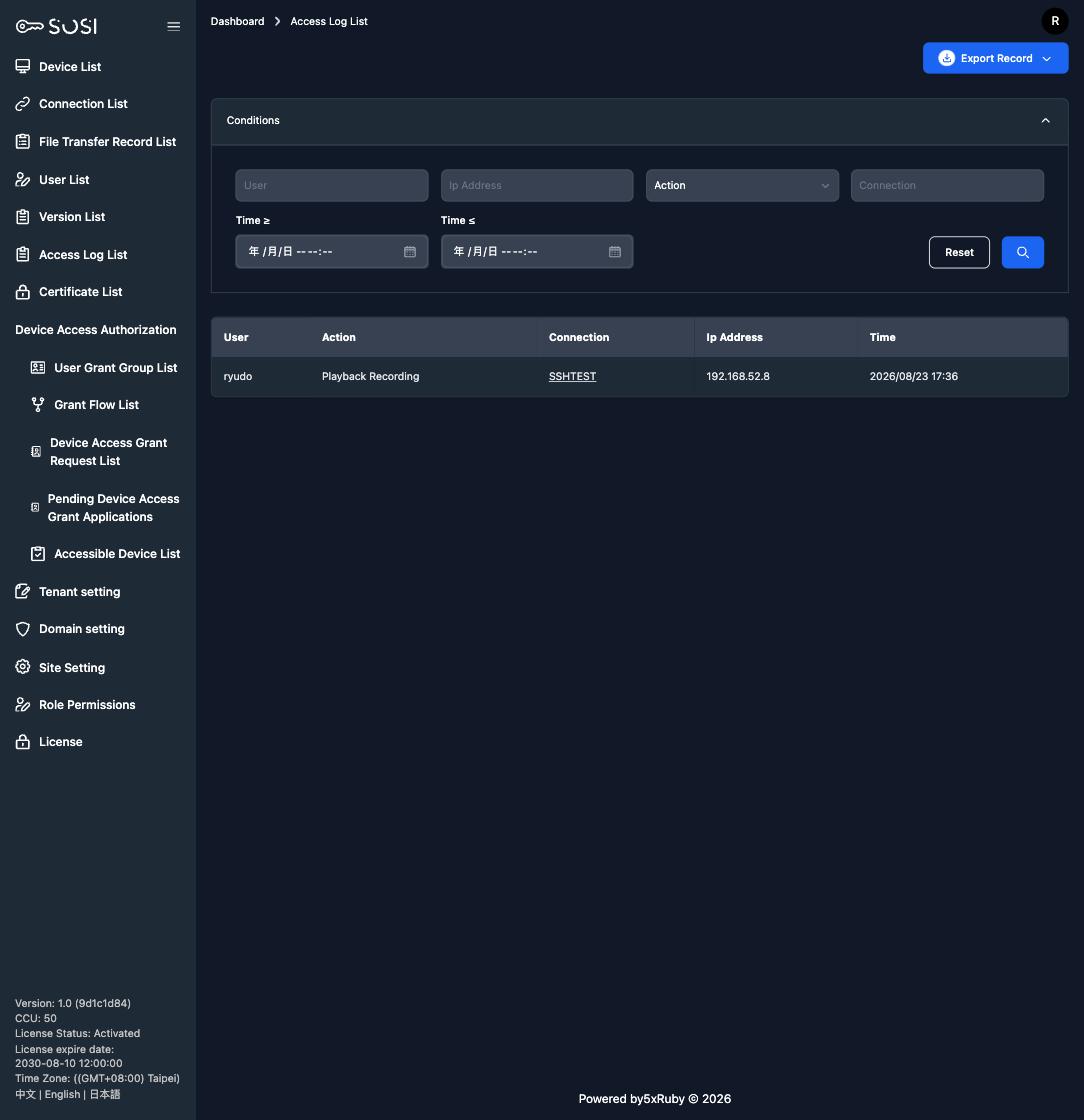
Permissions: Access logs reuse the User Management page permission. When a role sets it to Invisible, the menu item is hidden and the page cannot be reached by URL either.
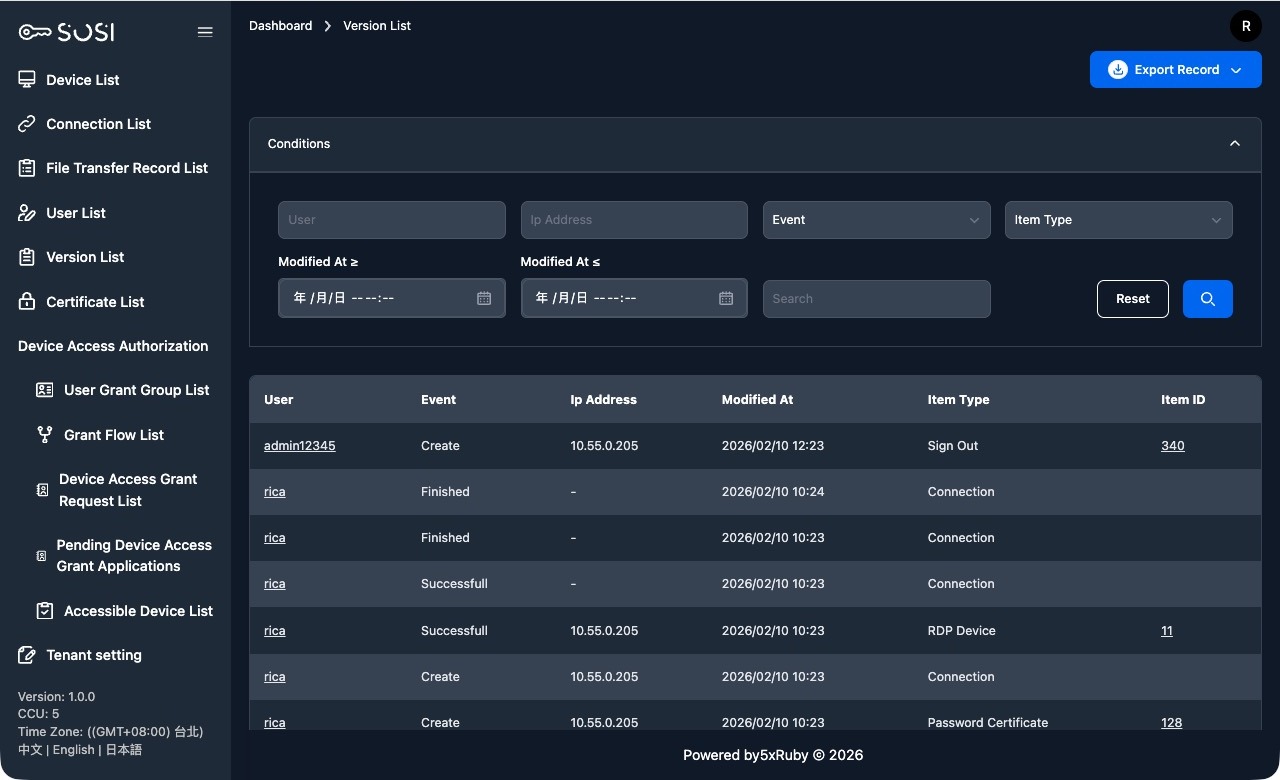
Activity Log List
This module tracks the change history of all objects in the system (such as accounts, devices, and credentials), and is a core feature for ensuring management compliance.
System Management Activity Logs
When administrators or users make any modifications to system data, the system automatically retains a record:
- Trigger Mechanism: The system automatically generates a log entry when a database object undergoes a Create, Update, or Delete operation.
List Information and Search
Based on the activity log interface, administrators can use the following features for auditing:
Search Criteria:
- Keywords and Filters: Filter by “Operator”, “IP Address”, “Event Type” (e.g., Create), or “Item Type” (e.g., Login, Logout).
- Update Time Range: Set a time range (Update Time >= or <=) to locate changes within a specific period.
List Field Descriptions:
| Field | Description |
|---|---|
| Operator | The account of the person who performed the action |
| Event | The type of action (e.g., Create, Update) |
| IP Address | The source IP address of the operator at the time of the action |
| Update Time | The exact date and time when the action occurred |
| Item Type | The affected system module (e.g., Login, User, Device) |
| Item ID | The unique database ID of the affected object |
| Changes | Field-level old value → new value for the change; also included in .csv / .xlsx exports |
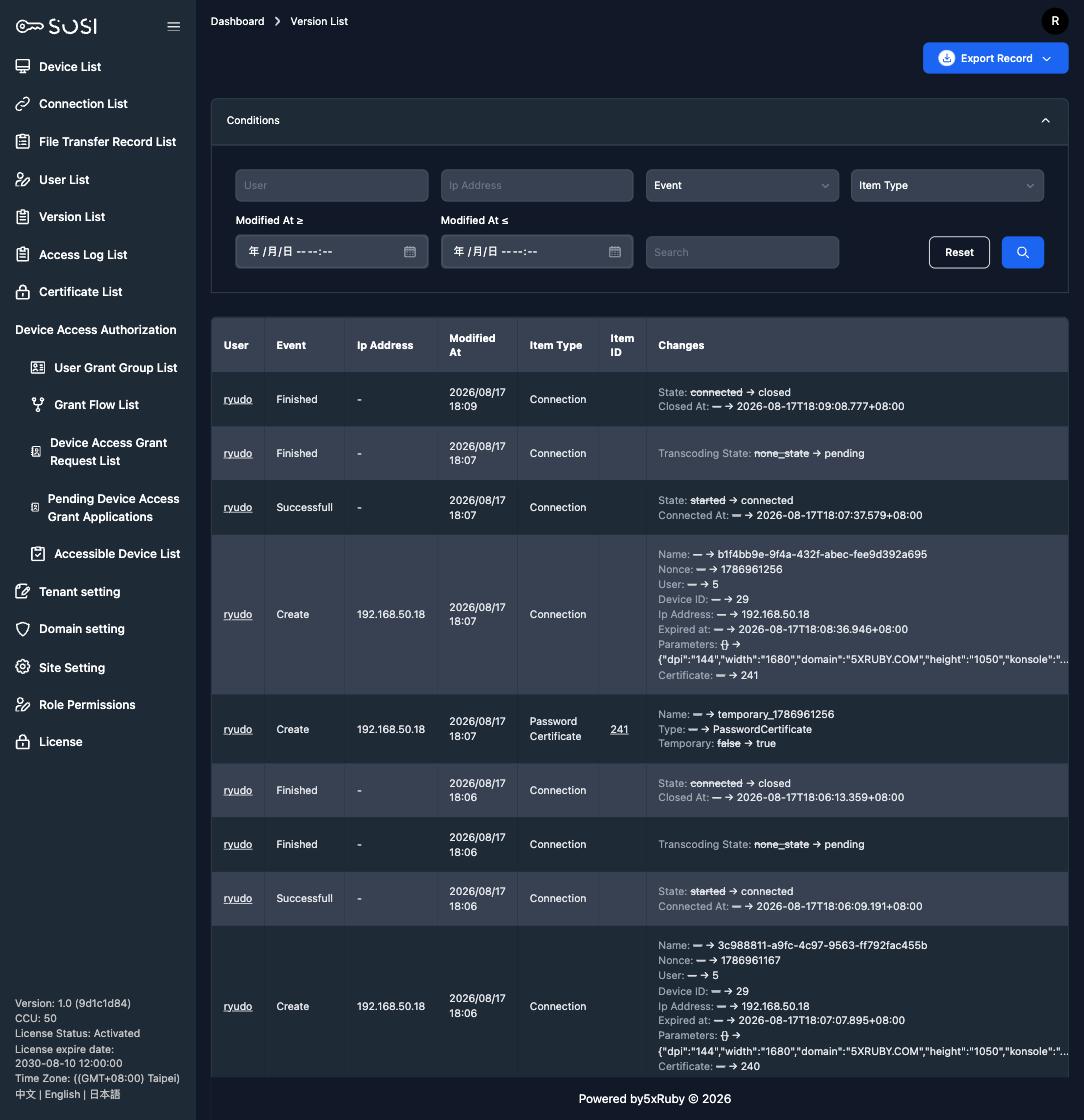
Noise reduction: Entries that only touch
id,created_at, orupdated_atare excluded from the list so meaningless changes do not clutter the audit trail.
Audit Coverage
Besides objects such as accounts, devices, and credentials, changes to Site Settings and Domain Settings are also recorded.
Sensitive data protection: Password hashes, 2FA secrets, credential plaintext, the SMTP password, the license key, and the OIDC client secret are replaced with
[FILTERED]before the audit entry is written, so they never appear on screen or in exports.