Device List
Device List
Displays information about devices currently available for connection. Administrators can view all devices in the system.
Device Card Information
Each device is displayed as a card containing the following key information:
- Device Name: The display name of the device within the system.
- Device ID: A unique identifier automatically assigned by the system.
- IP/Hostname: The network address or hostname of the device.
- Device Type: Supports SSH, RDP, or VNC protocols.
- Server Port: The communication port used by the protocol.
- Connection Status: Displays “Available” or “Connections Full”.
- Connected Users: The number of users currently connected to the device.
Add Device
- On the device list page, click “Create Device”.
- Enter the device information in the designated fields. The required fields vary depending on the device type (VNC/RDP/SSH parameters differ).
View Device
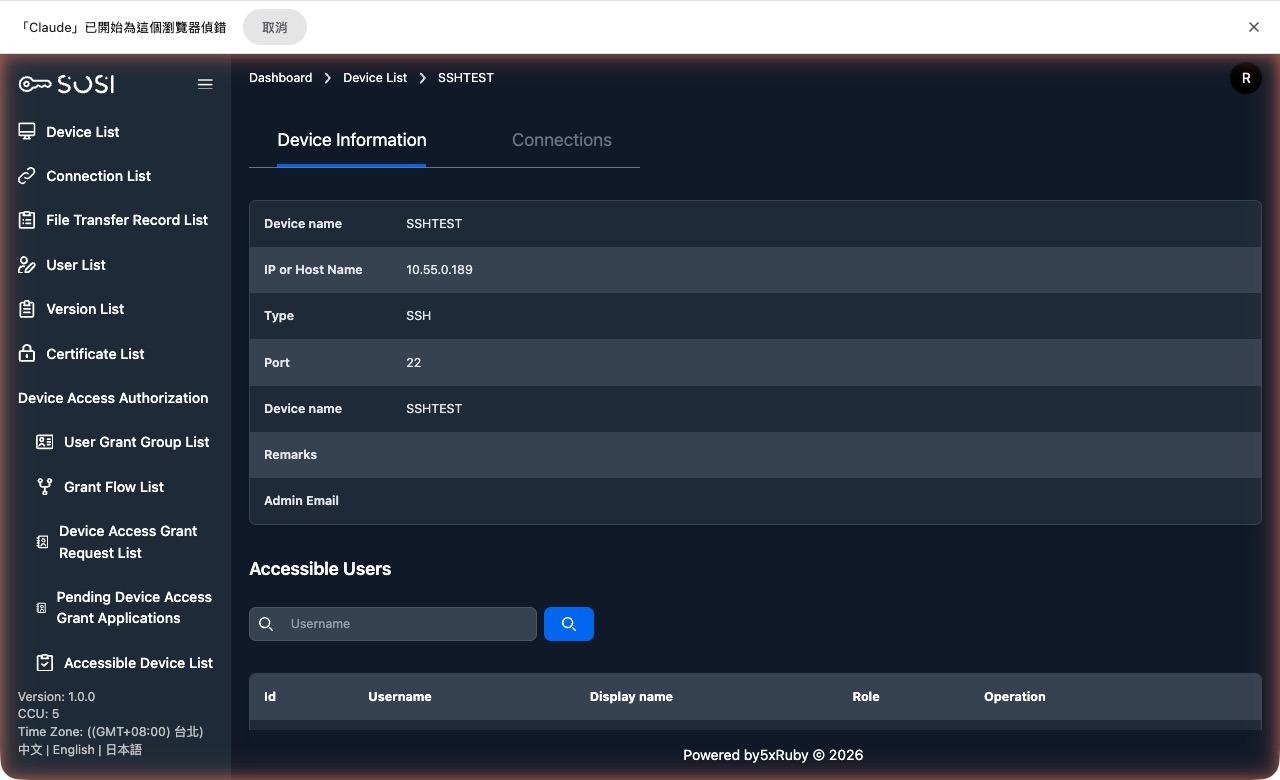
Device Information
Administrators can access the device detail page via the “View” function to review the resource’s configuration and access permissions.
- Device Name: Displays the device’s internal system name.
- Device IP / Hostname: The network address or hostname of the device.
- Device Type: SSH, RDP, or VNC.
- Server Port: The communication port used by the connection protocol.
- Notes: Additional remarks about the device.
- Contact Email: The email address of the device administrator.
Users with access permissions: This section shows the list of users currently authorized to use this device.
Connection Logs
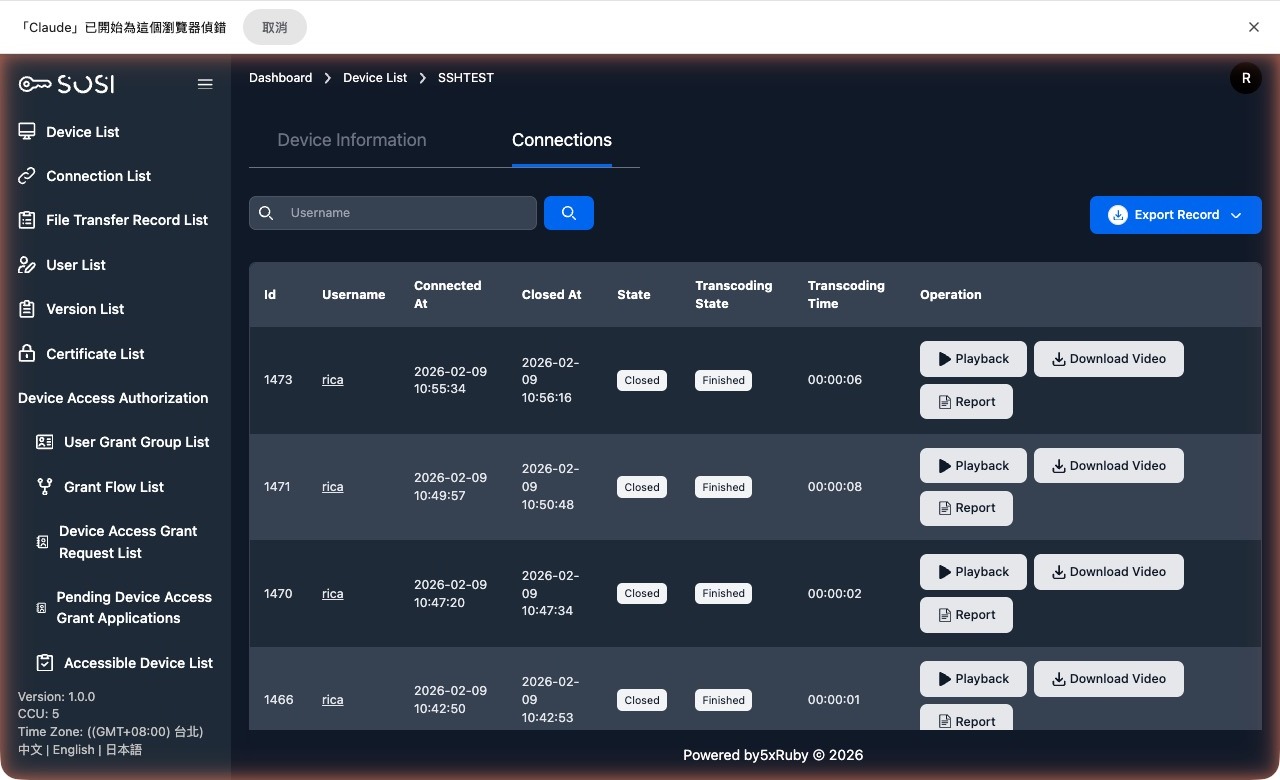
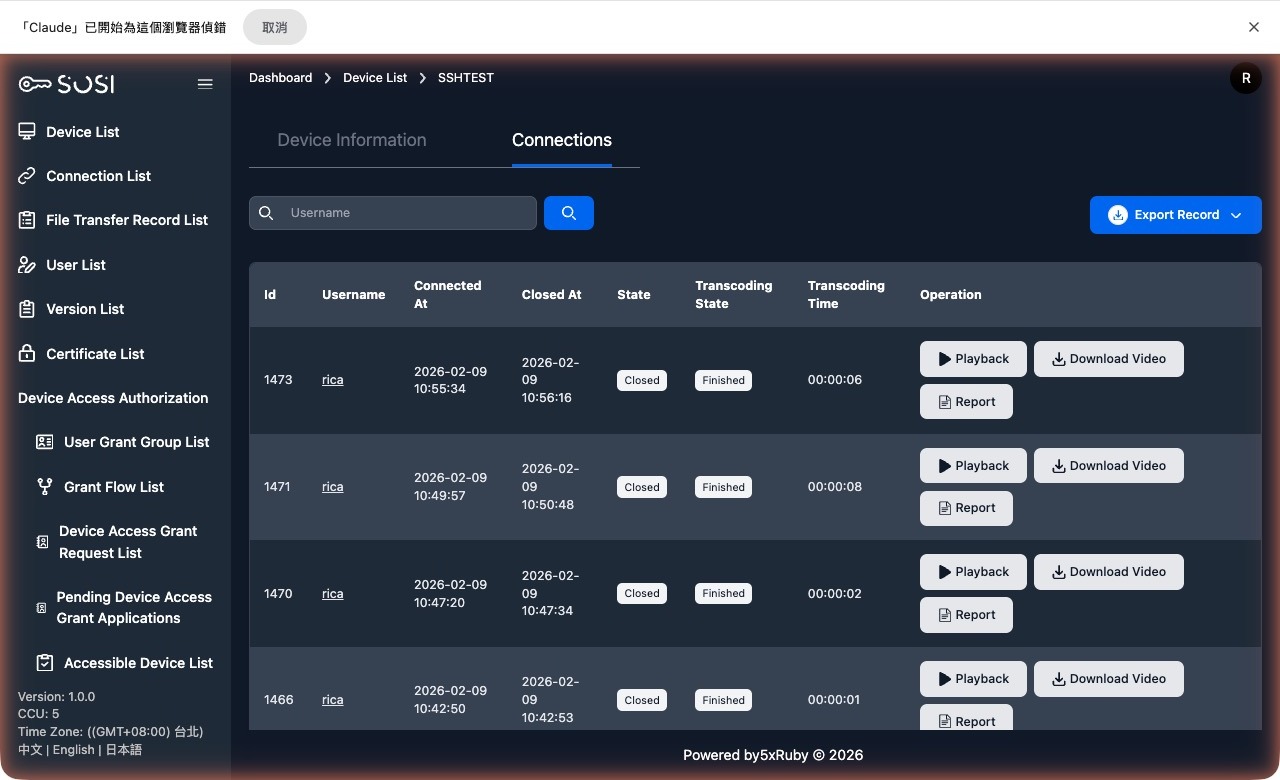
Log Field Descriptions:
- ID: The unique identifier for the connection event.
- User Account: The account of the person who initiated the connection.
- Connection Time / Disconnect Time: Records when the connection started and ended.
- Status: Shows the current state of the connection — “Connected”, “Ended”, or “Connection Failed”.
Actions:
- Playback (Screen Recording): Replay the complete screen capture from the connection session.
- Video Download: Download the screen recording file to local storage.
- Keystroke Log Download: Download the keystroke input log (.txt file) generated during the connection.
- Connection Report
For active connections, administrators can click the force disconnect button or monitor the live session. A confirmation prompt will appear before force disconnecting — click “Confirm” to proceed.
Export Logs: Administrators can export connection logs in .xlsx or .csv format.
Edit Device
- On the device list page, click “Edit”.
- Modify the device information as needed.
Note: The required fields vary depending on the device type (VNC/RDP/SSH).
Delete Device
- On the device list page, click “Delete”.
- The device will be removed from the system.
Device Settings
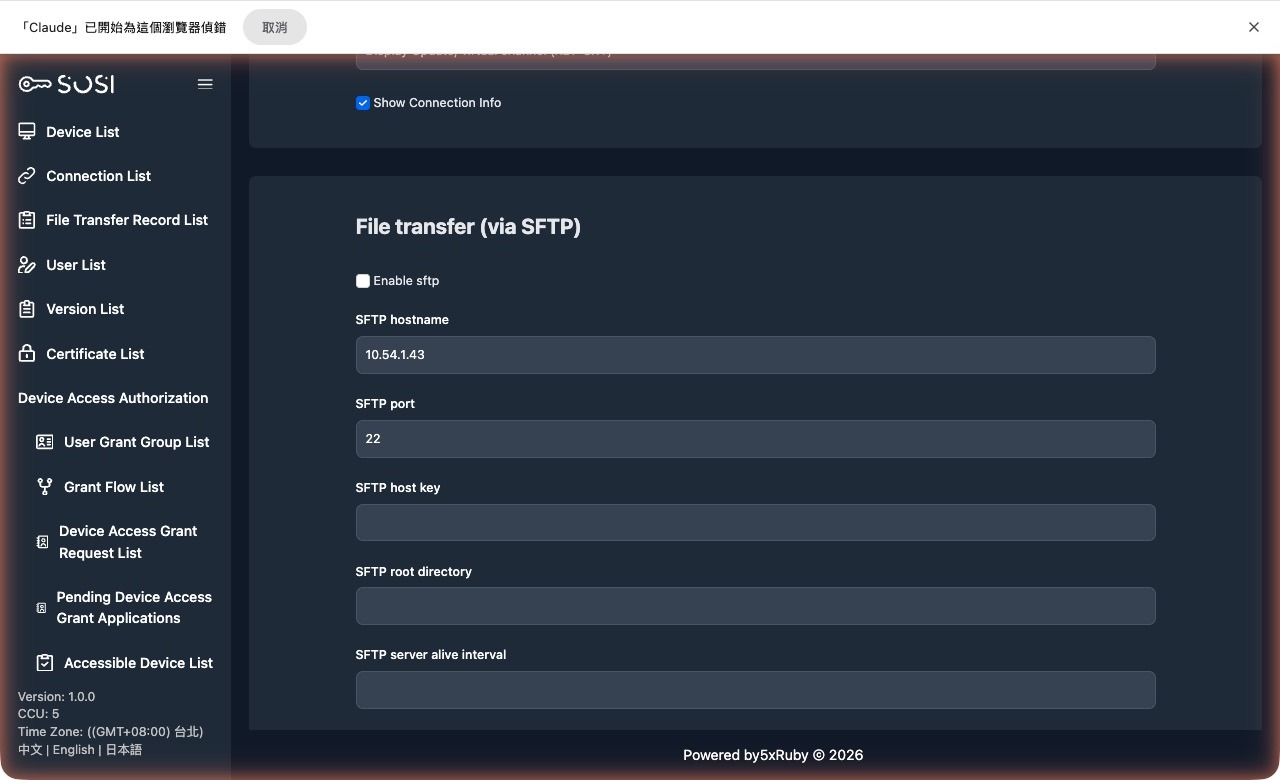
SFTP File Transfer Settings
This section controls file transfer permissions between the local machine and the remote device.
- Enable SFTP: When checked, users can perform file transfers between the local machine and the remote device.
Connection Parameter Configuration:
| Parameter | Description |
|---|---|
| SFTP Hostname | The hostname or IP address of the SFTP service host |
| SFTP Port | The SSH service port for SFTP |
| SFTP Host Key | Enter the SFTP public key |
| SFTP Root Directory | Set the default root directory for file transfers |
| SFTP Server Alive Interval | Set the interval for SSH keep-alive packets |
SFTP Authentication Types:
- Password Certificate: Requires entering the corresponding username and password.
- PrivateKey Certificate: Requires entering the username, private key, and private key passphrase.
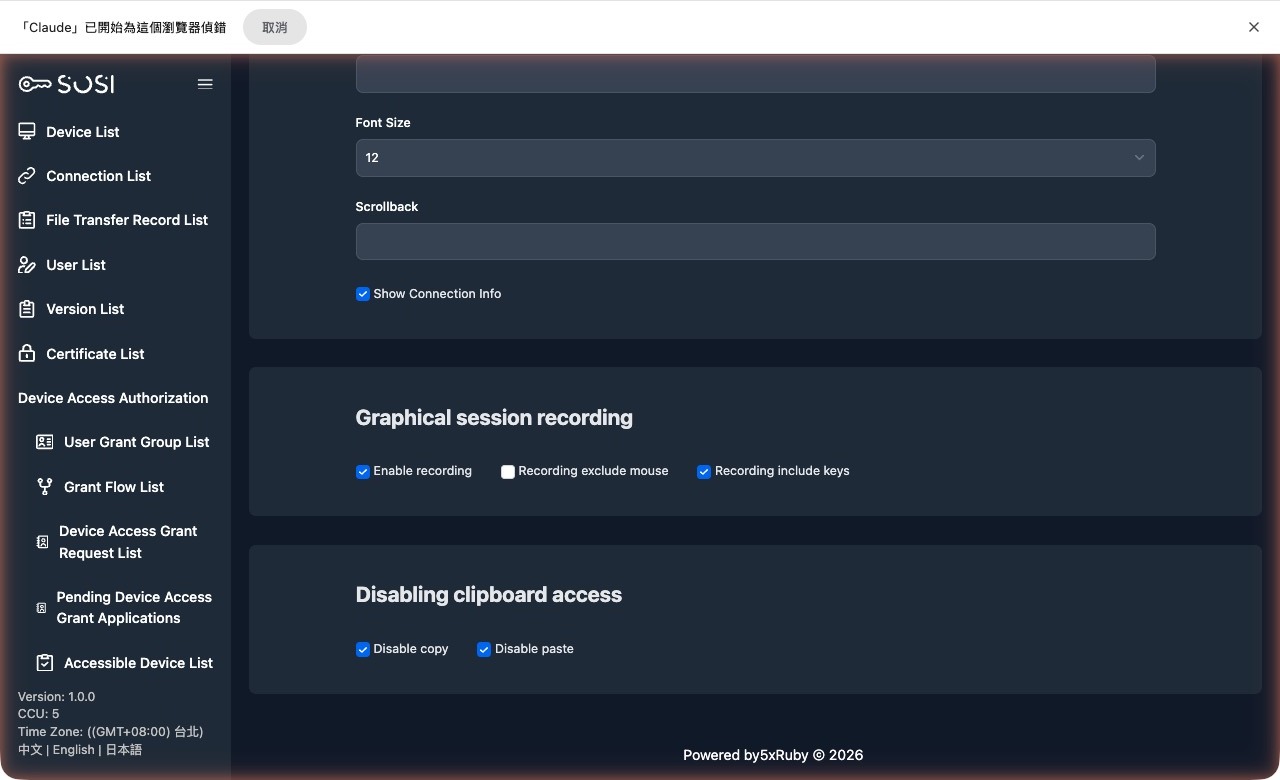
Graphical Session Recording
This section provides comprehensive settings for operational activity auditing.
- Enable Recording: When checked, the system will automatically start screen recording when a user connects.
- Exclude Mouse Cursor from Recording: When checked, the recording will hide the user’s mouse cursor movements and click actions.
- Enable Keystroke Logging with Recording: When checked, the system will simultaneously log all text input during the connection session and generate a .txt keystroke log file for subsequent auditing.
Disable Clipboard Access
This feature prevents sensitive data from being copied in or out of the remote device.
- Disable Copy: When enabled, users cannot copy data from the remote device to their local machine.
- Disable Paste: When enabled, users cannot paste data from their local machine to the remote device.