Login & Account Security
The system does not offer open registration. Users can only log in through LDAP directory service integration or by being manually added by an administrator.
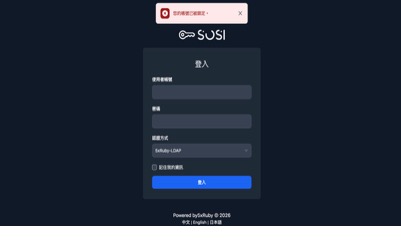
Login Instructions
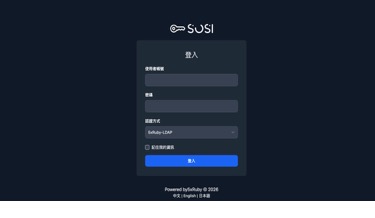
- Username: Enter the user ID
- Password: Enter the login password
- Authentication Method:
- Admin: Select SOSI
- General users: Select LDAP
Two-Factor Authentication (2FA) Setup
Required only if 2FA has been enabled
-
After logging in, the following screen will be displayed.
-
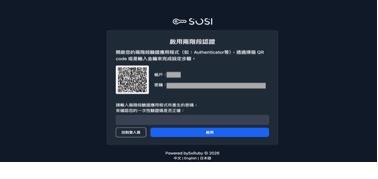
Bind Authenticator: Download an Authenticator App on your mobile device (e.g., Google Authenticator) and scan the QR code displayed on the page.
-
Enter Verification Code: Enter the 6-digit dynamic verification code generated by the app to complete the binding. (The code refreshes automatically every 30 seconds.)
-
Back Up Recovery Codes: The system will provide multiple recovery codes.
Warning: Be sure to download or take a screenshot to save these codes. If you lose your phone or cannot access the authenticator, these codes are your only way to log in (each recovery code can only be used once).
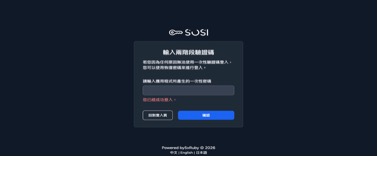
- The system will redirect to the login screen, where you need to re-enter the six-digit verification code and log in again.
Failed Password Lockout and Unlock
Account Lockout Trigger Conditions
- Failed Password Attempts: When a user enters an incorrect password more than 5 consecutive times, the system automatically triggers the lockout mechanism.
- Lockout Consequence: The account will be automatically locked, and login access will be suspended for 1 hour.
Unlock Methods
Admin Feature: This operation requires administrator privileges. Regular users should contact an administrator for assistance with unlocking.
Administrators can help users restore account access through the following two methods:
Manual Unlock by Administrator:
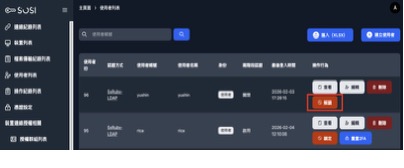
- Navigate to the “User List” page.
- Find the locked user and click the unlock button.
- This action immediately resets the failed login counter and restores login access.
Automatic System Unlock: The user simply waits for the 1-hour lockout period to expire, after which the system automatically lifts the restriction.
Note: The unlock function only resets the failed login counter. It does not change the user’s existing password.