
User Grant Groups
User Grant Groups (UGGs) are the fundamental unit of the authorization approval workflow. Each group represents a set of reviewers for one approval step — any member of the group can approve or reject on behalf of that group.
Group List
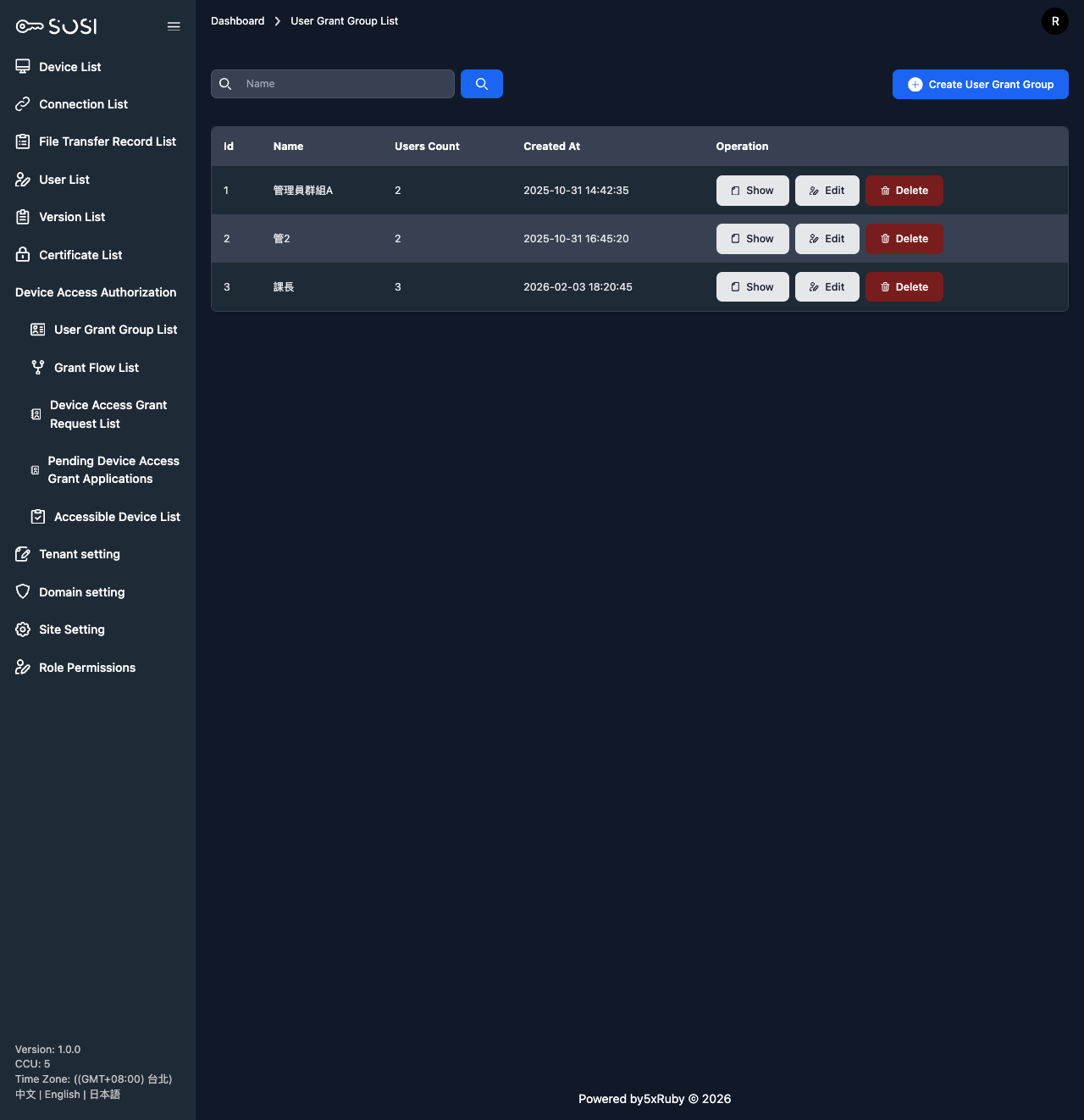
The group list page displays all created user grant groups, showing each group’s ID, name, and creation time.
Group Operations
- Create Group: Add a new user grant group, setting the group name and members.
- Edit Group: Modify the group name and add or remove members.
- Delete Group: Remove groups that are no longer needed. Note: Groups referenced by active grant applications may not be deletable.
Creating and Editing Groups
Group Membership Eligibility
The following users can be added to a grant group:
| Condition | Description |
|---|---|
| System Administrator (Admin) role | Users with the Admin role can always be added to any grant group, regardless of other settings |
| “Can Join Authorization Groups” flag enabled | Non-Admin users must have this flag enabled in their Role Permissions to be eligible for group membership |
Tip: If a specific user does not appear in the member selection list, check whether their role has the “Can Join Authorization Groups” flag enabled.
Adding Members
From the group view page, you can use the multi-select field to select and add multiple eligible users to the group at once. Changes take effect immediately — the group becomes available for assignment as an approval step in grant flows.
Relationship Between Groups and Grant Flows
User grant groups do not directly participate in reviews on their own. They take effect through the following process:
- Create the group — Define the reviewers for an approval step
- Create a grant application — In Accessible Device Grants, select the target (User + Device) and bind the required groups as sequential approval steps
- Enter review — The application enters Pending Grants and proceeds through each step, reviewed by the corresponding group’s members in order
A user can belong to multiple grant groups simultaneously. If a user is a member of both the Step 1 and Step 3 groups, that user can approve or reject in both steps independently.