
Group Bulk Authorization
Once the number of users and devices grows past a certain point, granting access one pair at a time becomes a burden — assigning N users to M devices takes N×M operations. Group bulk authorization lets an administrator organize users into groups and devices into groups, then pair the two groups to grant access to the whole set at once.
How it works
Group bulk authorization is built from three objects:
| Object | Description |
|---|---|
| User group | A set of users, e.g. “R&D” |
| Device group | A set of devices, e.g. “Development hosts” |
| Group grant | A declaration that a user group may access a device group, along with conditions such as the access period |
When a group grant is created, the system immediately expands it into individual device grants — one for every user in the group against every device in the group. These group-derived grants appear in the Accessible Device List alongside manually created ones, so connections, auditing and permission checks all keep working without any extra configuration.
How this differs from Device Access Authorization
Group bulk authorization Device access authorization Purpose Grant access at scale, in one step Layered review, approved step by step Review required No — effective immediately Yes — every approval step must pass Typical use Standing access for a department or team Privileged access that needs a sign-off trail The two can be used together. Cases that need a specific login identity or certificate should still be handled with a manually created device access grant.
User groups
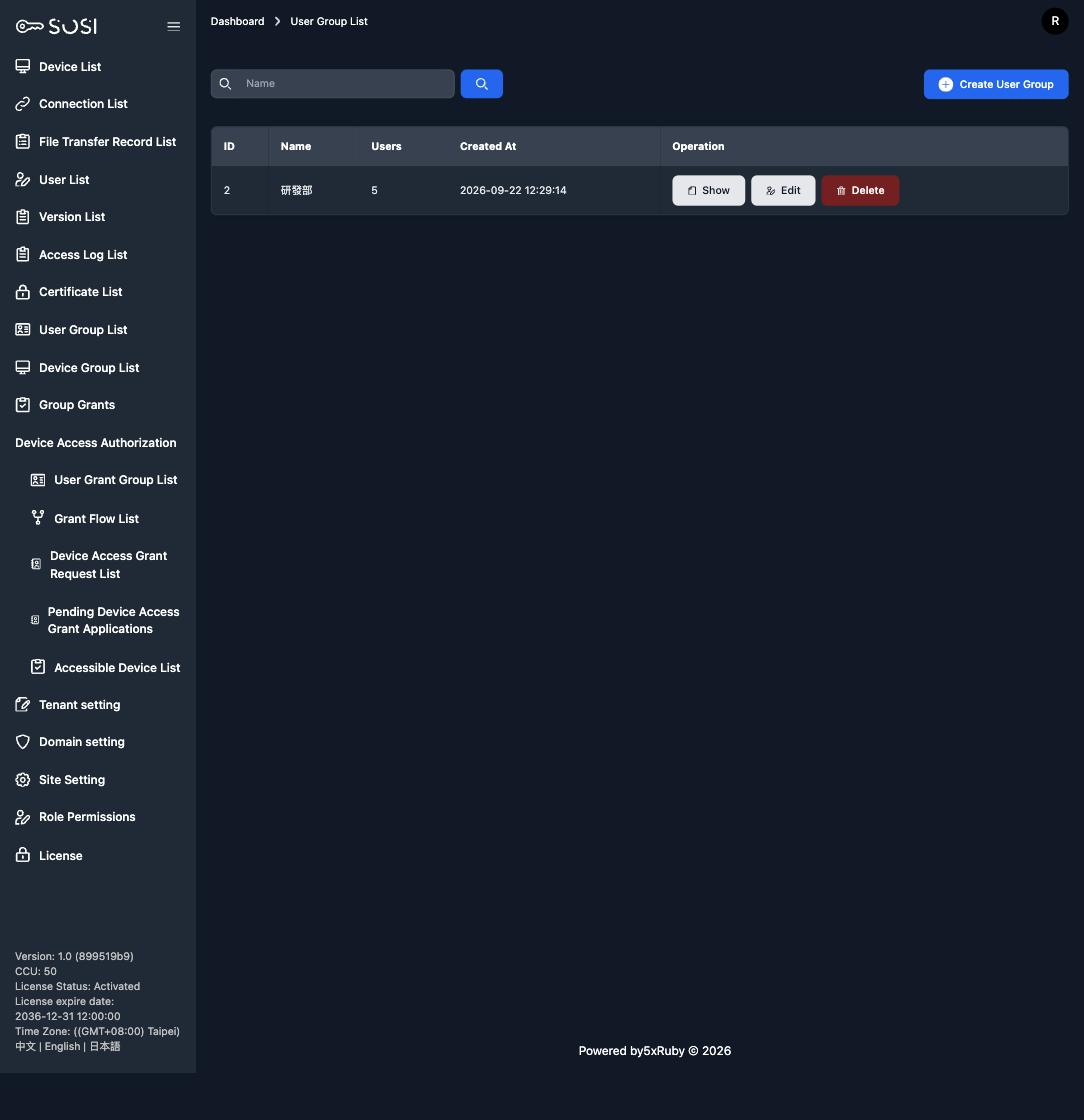
Open User Group List in the sidebar to create, edit and delete groups. The list shows the current member count for each group.
Click Show, then switch to the Users / Add User to Group tab to add or remove members.
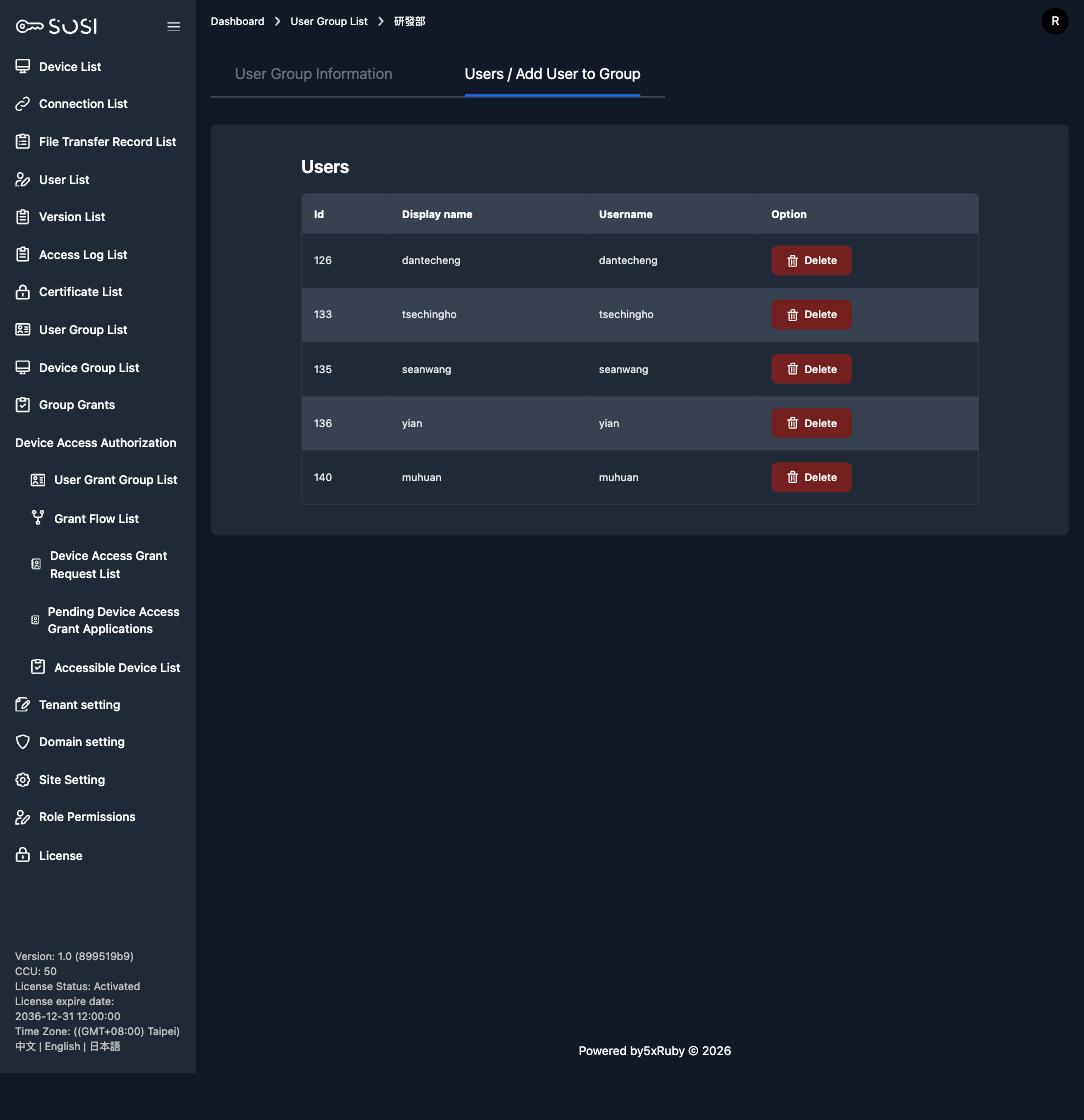
A user can belong to only one group. To bring in someone who already belongs to another group, simply select them — the system moves them out of their previous group automatically. You do not need to remove them first. The selection list shows each candidate’s current group so you can see what the assignment will change.
Administrators are not offered in the list. Administrators do not connect through device grants, so adding one to a group would only produce grants that can never take effect. They are excluded at the source.
Device groups
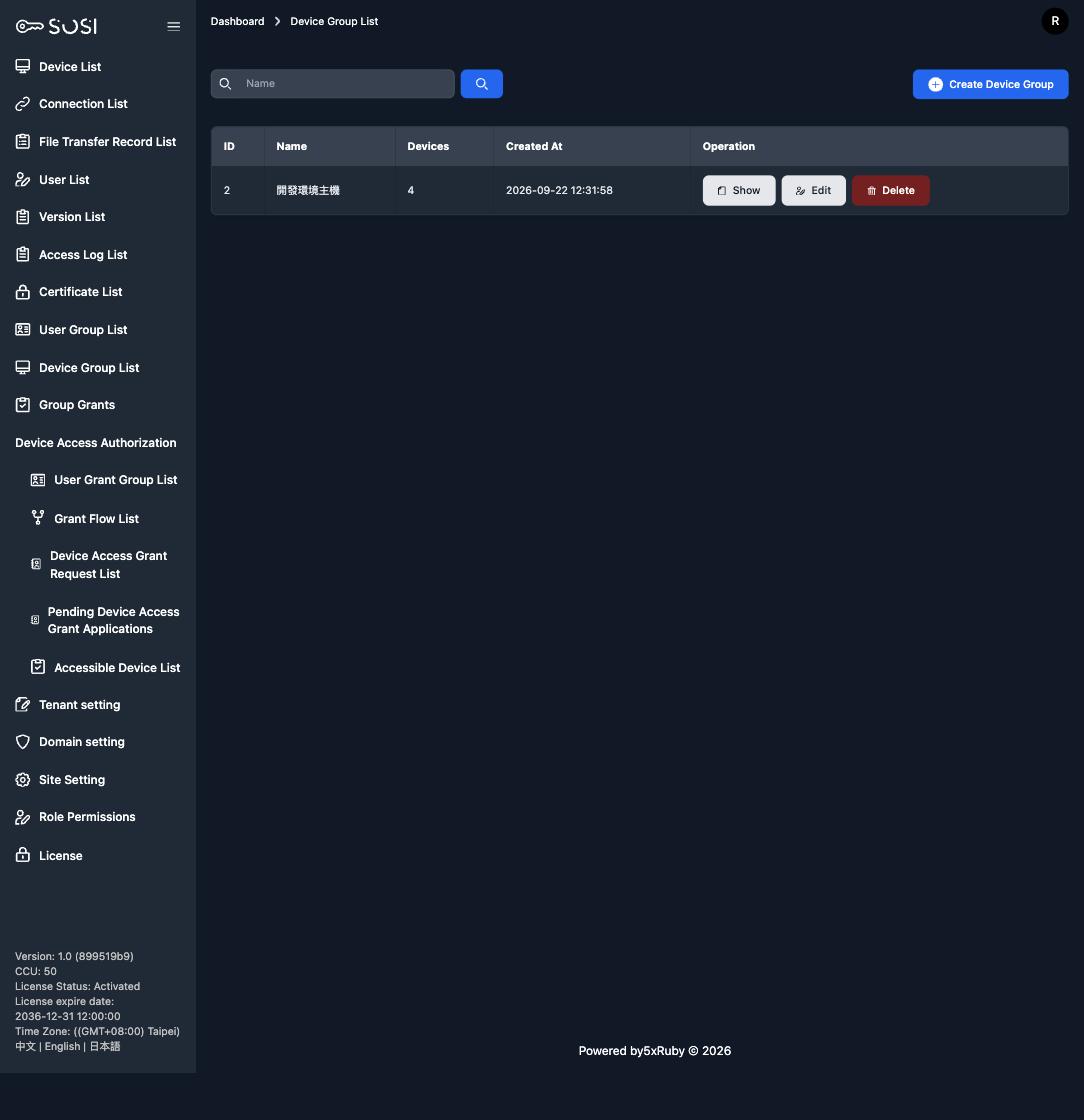
Device Group List works the same way as user groups; the list shows the device count for each group.
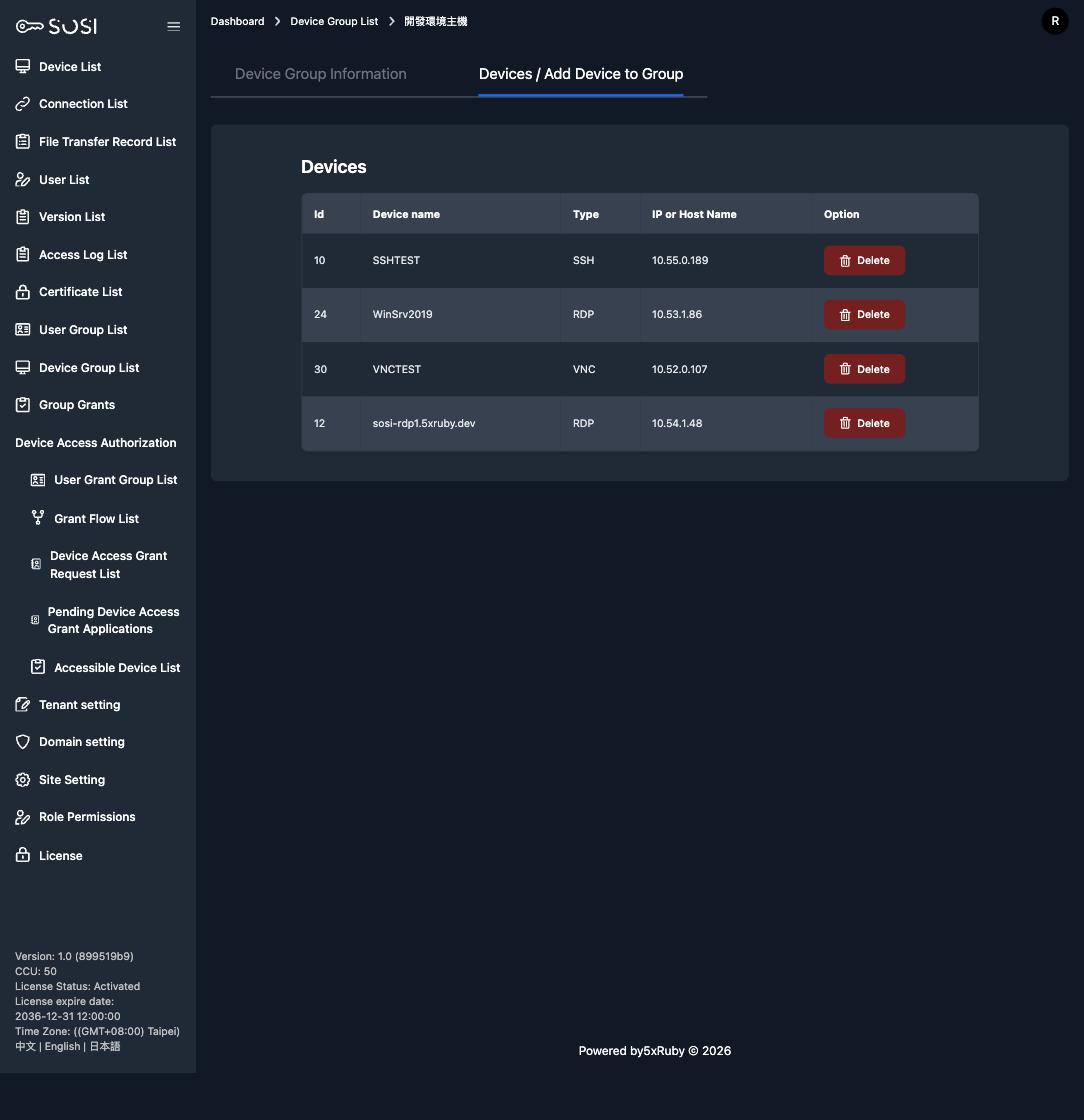
Open a group and switch to the Devices / Add Device to Group tab to manage its devices. A device likewise belongs to only one device group.
Creating a group grant
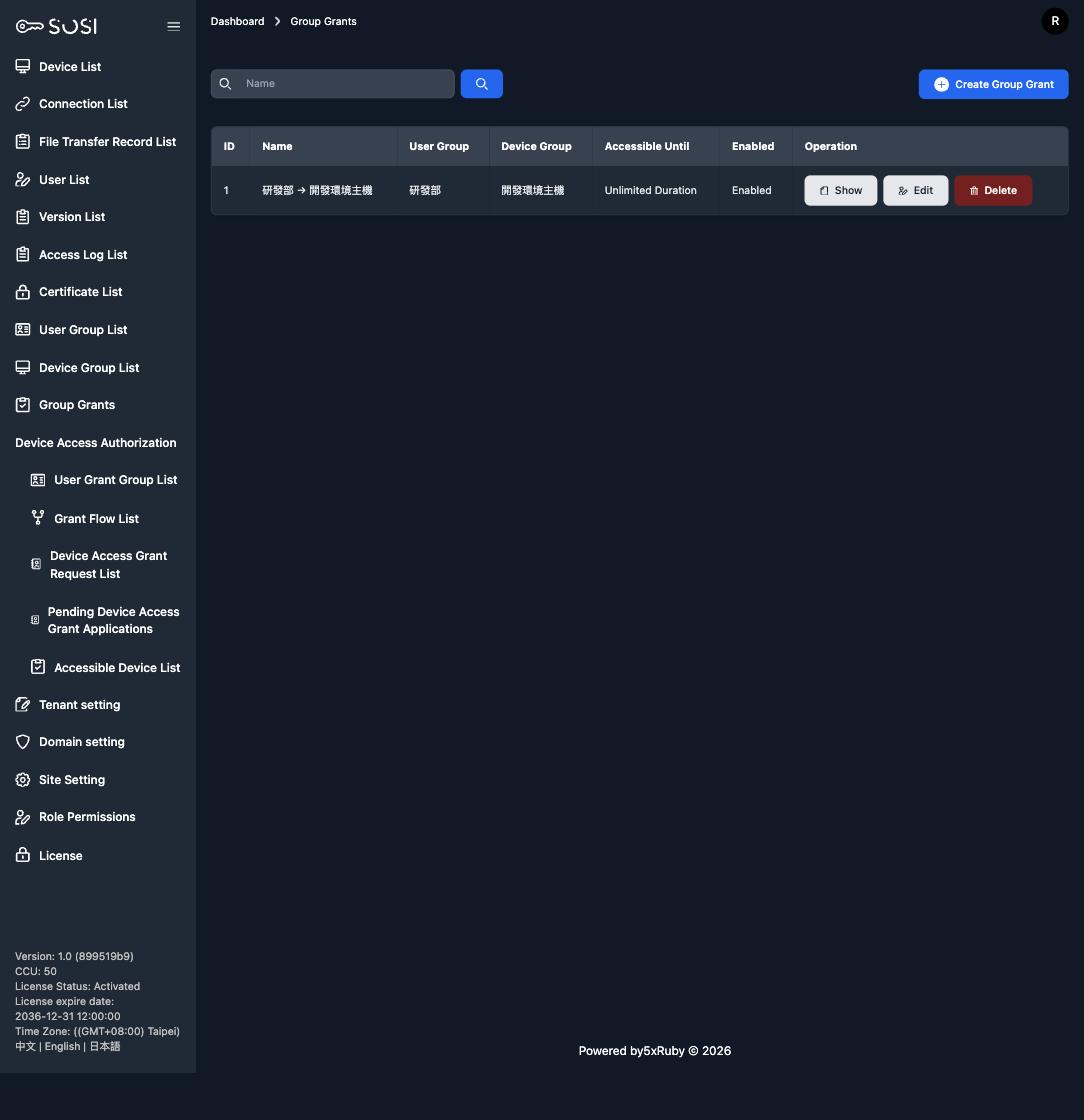
Open Group Grants in the sidebar and click Create Group Grant.
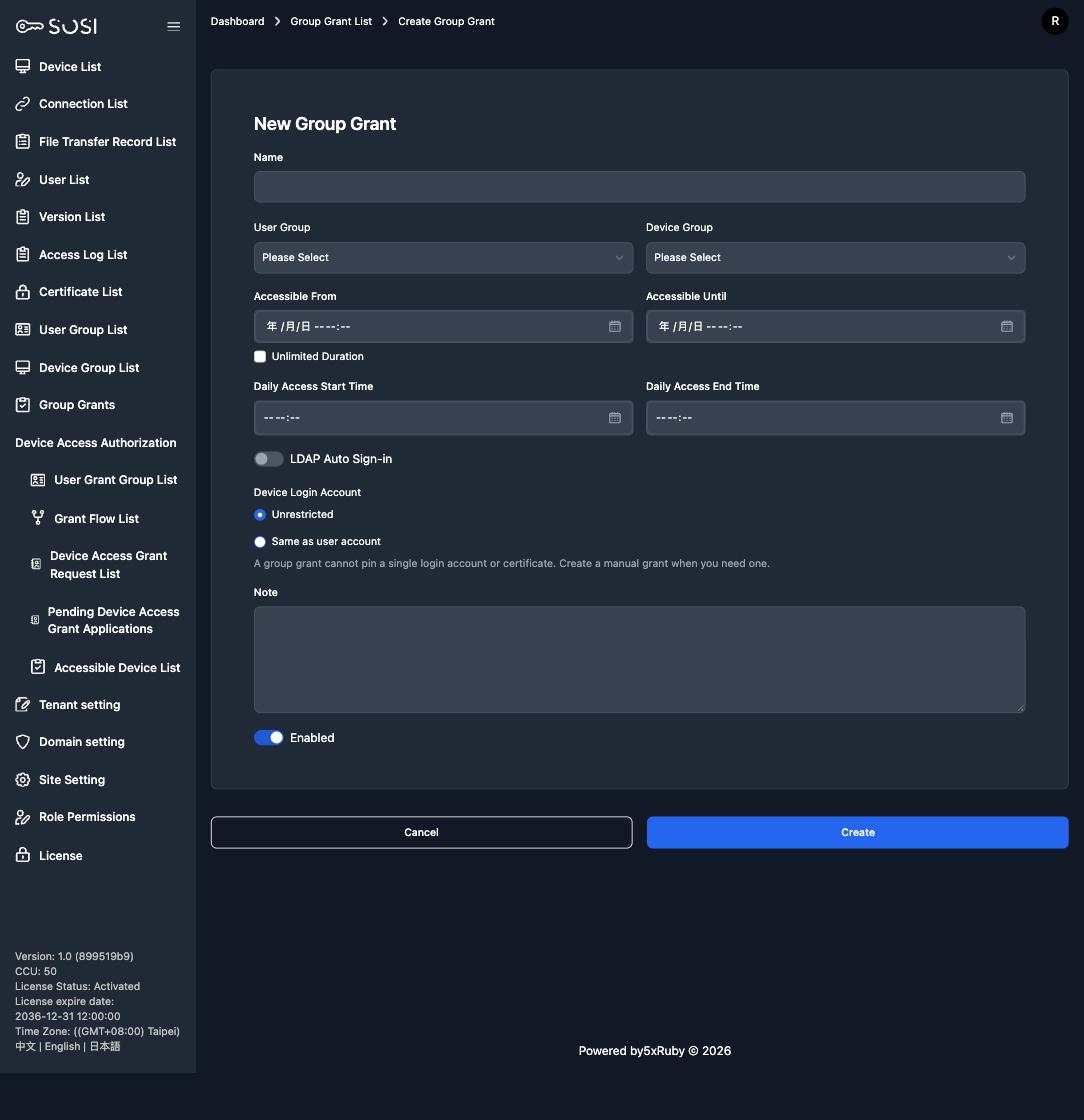
The fields are:
- Name: A label for this group grant. Writing it as “user group → device group” makes it easy to recognize later.
- User Group / Device Group: The two groups to pair. Only one group grant can exist for a given pair.
- Accessible From / Accessible Until: The validity window. Tick Unlimited Duration for standing access.
- Daily Access Start / End Time: The hours of the day when connections are allowed — office hours only, for example. Both ends must be filled in together.
- LDAP Auto Sign-in: Whether connections sign in to the target device automatically using the user’s LDAP credentials.
- Device Login Account: Either Unrestricted or Same as user account.
- Note: What this grant is for. Shown on the detail page.
- Enabled: When switched off, the declaration stops producing grants.
A group grant cannot pin a single login account or certificate. Applying one named account to a whole group of users would make everyone share the same login identity, leaving an audit unable to answer who performed an action. When you need a specific login identity, use a manually created device access grant instead.
Expansion status and unapplied pairs
The detail page of a group grant shows Granted / Expected along with the full Expansion Status list — every pair this declaration should produce, and its current state.
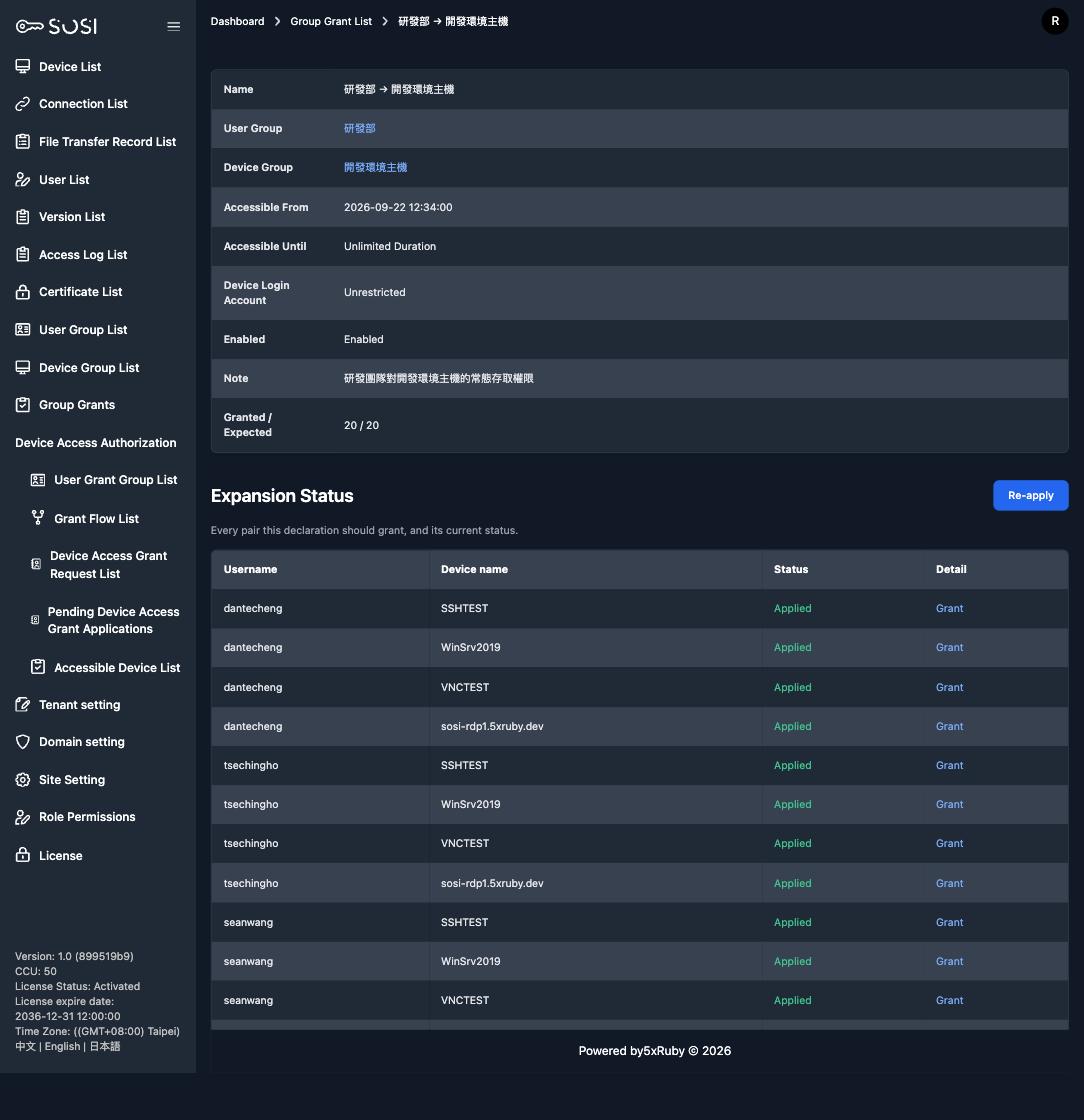
Applied means the grant is in effect; the link on the right opens it. When a pair shows as not applied, there are two common reasons:
- That user already has a manually created grant for that device. The existing manual grant wins; the system will not overwrite it.
- The device’s LDAP auto sign-in policy does not match the user’s authentication method.
An unapplied pair does not fail the whole group grant — every other pair still takes effect. Once the cause is resolved, click Re-apply to expand it again.
Membership changes sync automatically
A group grant needs no manual upkeep once created:
- A new member joins the group → they receive every device grant the group grant covers.
- A member leaves the group (or is assigned to another one) → the grants derived from that group are revoked.
- A device joins or leaves the device group → the matching grants are created or revoked.
- The group grant’s conditions change (time window, LDAP sign-in, and so on) → every grant it produced is updated.
- The group grant is deleted → all grants derived from it are removed. Manually created grants are untouched.
Group-derived grants are read-only
In the Accessible Device List, a group-derived grant shows its originating group grant in the Source column, with a link straight to it.
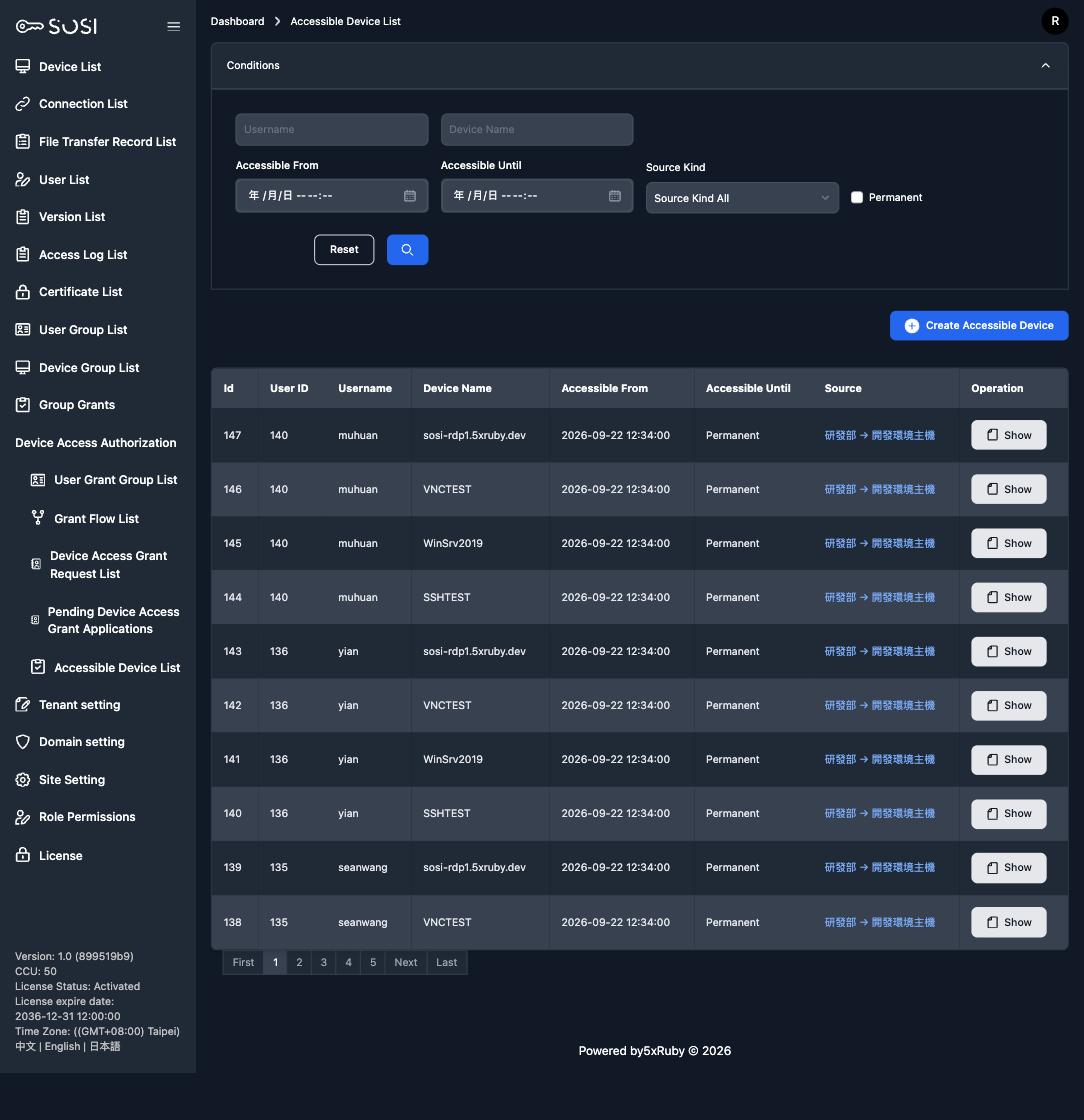
These grants cannot be edited or deleted individually — the operations column offers only Show. This prevents individual edits from drifting out of step with the group settings, which the next sync would overwrite anyway. To adjust them, change the group grant instead and the change applies to the whole set.
The Source Kind filter in the search conditions separates manually created grants from group-derived ones, which makes it easy to review which access is a one-off exception and which comes from a group rule.
Users can still adjust their own connection parameters — resolution, color depth, clipboard and other display preferences. These are personal preferences and are not covered by group synchronization.